Adjust interface colors, contrast, and motion for your own view
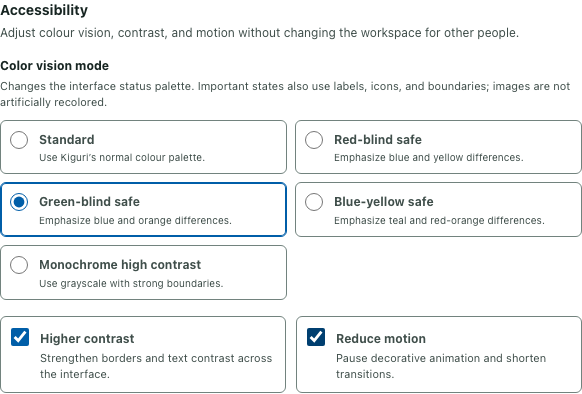
Settings lets you adjust the interface you see without changing the shared office layout. Its Accessibility section controls the status palette, border and text contrast, and decorative interface motion. The example image shows actual controls in an isolated browser with local preferences selected; those preferences were reset after the check.
Open Accessibility and compare one palette
Open Settings and choose Accessibility. Under Color vision mode, Standard uses the usual palette. Other choices are Red-blind safe, Green-blind safe, Blue-yellow safe, and Monochrome high contrast. The descriptions identify the interface colors or boundaries each option emphasizes.
Select one alternative and compare the same controls before changing anything else. For example, try Green-blind safe and inspect the selected tab, a radio selection, and a status label. Use the words, icons, and boundaries as well as the colors to identify the state. The option changes interface styling; images are not artificially recolored. Judge the view you actually use rather than expecting every part of the game artwork to change.
Try contrast and motion independently
Higher contrast strengthens interface borders and text contrast. Check the edge of the settings panel and the distinction between descriptive text and control labels. A choice that makes one boundary clearer may look different from the ordinary palette, so inspect a few important controls before deciding to keep it.
Reduce motion shortens interface transitions and limits decorative CSS animation. Enable it and examine the interface during ordinary changes. This preference does not establish that every canvas or game animation stops. Keep the palette, contrast, and motion decisions separate so you can identify which change improves the particular view you are checking.
You can combine these controls. In the illustrated example, an alternate palette, Higher contrast, and Reduce motion are selected together. That is a local configuration example, not a prescribed combination for every person.
Reopen the panel to check retention
Changes apply as you select them; there is no separate Save operation for these preferences. Use Done or the close control when finished, then reopen Settings and Accessibility. Check the selected radio option and both checkboxes rather than relying only on the panel's appearance.
The preferences use this browser's local storage. They do not establish account-wide synchronization or identical settings on another device. If storage is unavailable, a change can affect the current page without being retained for a later visit. When a choice unexpectedly reverts, check the current browser context before assuming that another teammate changed the workspace.
Return to the ordinary view when needed
Select Standard, then clear Higher contrast and Reduce motion to return these preferences to their ordinary values. Clearing only one checkbox leaves the other choices intact. Reopen the panel once more if you want to verify the resulting stored configuration.
Keep Office lighting separate when troubleshooting: Day and Night are in the Office section and concern a different display preference. For an interface issue, record the palette, contrast, motion choices, and the control you were inspecting. That context is more useful than saying the whole office looks different.