Choose your demo character and display name
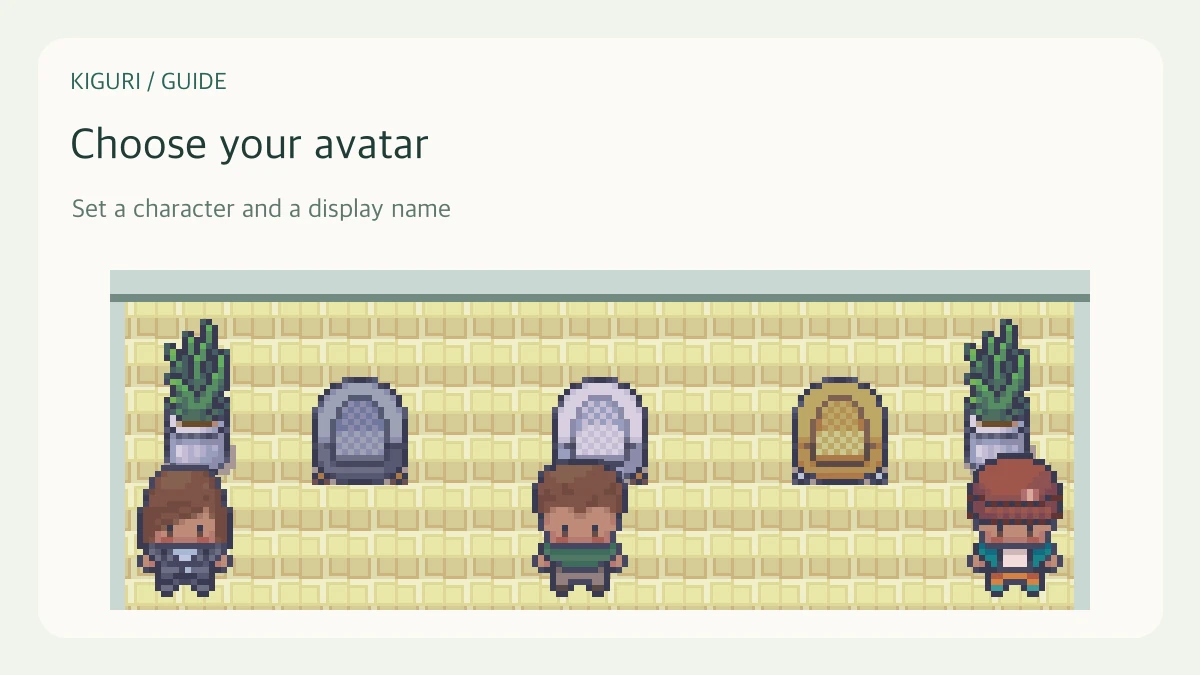
Your character helps you recognize your position in the office. Your display name helps other participants recognize you. For a first visit, you can use a demo nickname rather than sharing personal contact details.
1. Check the character preview
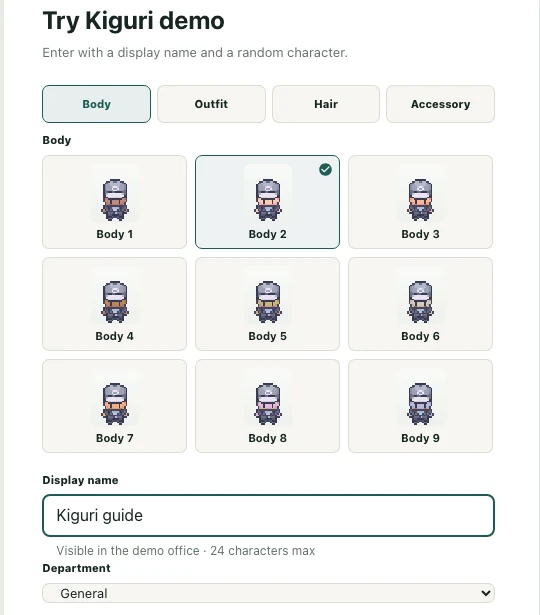
Open /demo?play=1 and look at the character shown on the entry screen. Try the available appearance options and compare the preview. A character in a promotional scene is not necessarily the character selected for your visit.
2. Enter a recognizable name
Use the Display name field. The field shows its character limit and asks for a name if it is empty. Avoid a name made only of spaces. If you are trying the demo with someone else, agree on distinct nicknames so you can find each other.
3. Share only what you intend to make public
Your display name is visible in the demo office. You can leave out phone numbers, email addresses, and customer names. A demo nickname and an organization account name serve different purposes; entering the demo does not mean you have changed your account details.
4. Match your name to your character
Enter the office and move a few steps. Compare the moving character, its name label, and the user information on screen. The name label identifies a participant; it is separate from a chat message.
5. Read status separately
A visible character does not necessarily have a camera on or a call connected. Online in office describes presence in the space, while Audio/video off describes media connection. Focus time and Busy describe availability. If two people use the same nickname, confirm who you are speaking to through chat rather than relying on the name alone.