Check which stage an audience area targets
An audience area can use an explicit stage target or an implicit first-stage choice. With several stages on one map, inspect that relationship before relying on the event arrangement. The example images show native controls with synthetic areas in an isolated editor. No media session or delivered broadcast was tested.
Find the audience area's target
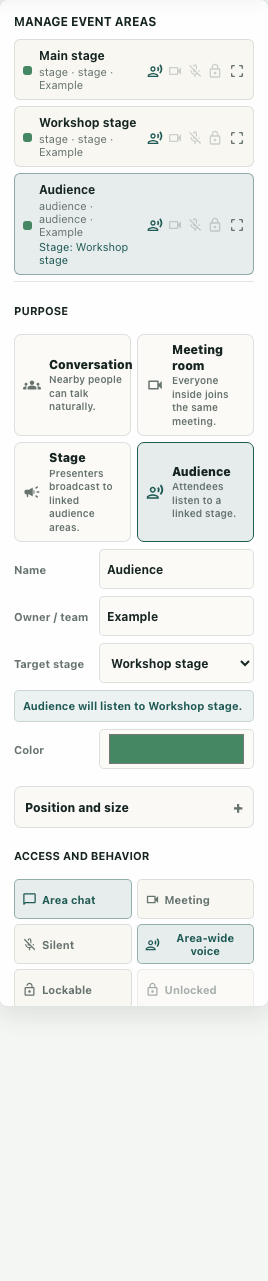
Open the editor with the required access, choose Events, and open Manage event areas. Select the existing audience area by name. Read its stage label and Target stage control rather than inferring its source from which stage happens to be nearby.
The role descriptions explain the intended arrangement: an audience listens to a linked stage. That description is configuration guidance, not proof that participants received audio or video. Keep devices, connection state, and delivered media for a separate rehearsal when needed.
Compare implicit and explicit choices
Target stage offers First stage on this map as well as named stage choices. An empty target uses the implicit choice. The management label identifies the automatic stage when one is available, helping you notice an arrangement that was never explicitly assigned.
In the synthetic example, Main stage and Workshop stage are both on the audience's map. Selecting Workshop stage records its identifier and changes the native label to that stage. Preserve the audience name, map, and selected stage together. A drawing that places the audience beside Workshop stage is not a substitute for this target setting.
Inspect a missing stage without guessing its effect
When the selected stage is removed from the synthetic state, the form shows Selected stage missing and asks you to pick another stage. Target stage retains a missing-stage option so the unresolved configuration is visible.
The runtime source has a fallback that matters here. It first tries a valid explicit stage on the same map. If that target is missing, belongs to another map, or is not a stage, it falls back to the first stage on the audience's map. If none exists, it returns the audience area itself. The warning therefore does not establish that media is necessarily disconnected. Correct the intended target instead of treating the warning as a complete diagnosis.
Recheck the event configuration deliberately
Choose the intended existing same-map stage and read the resulting label again. Keep other behavior and access properties unchanged while answering this target-selection question. If the stage you need is absent, identify that missing configuration rather than selecting a convenient unrelated name.
On a smaller screen, the Properties panel may clip parts of the form. Scroll through the available panel or use a larger view to inspect the complete target and warning. Do not infer a hidden value from an overview image or promise that every field is simultaneously visible on mobile.
Keep configuration and delivery evidence distinct
Write an audience-to-stage note containing the audience identifier and map, target identifier, explicit or automatic state, and any missing-stage warning. Record the actual save outcome for authorized edits; a changed local select is not confirmation of persistence.
An eventual event rehearsal should check the media behavior with permitted participants and their actual connections. The isolated native form and exact source-method checks supply neither that test nor a guarantee of successful broadcast. The useful finish here is an explicit, inspectable target with its fallback understood, so the host can separate a configuration question from a later delivery problem.