Choose a specific arrival door in the editor
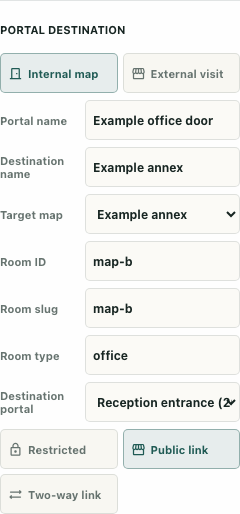
Selecting a destination map does not identify which of its doors should be used as the arrival endpoint. Inspect the portal's named destination separately when a map has more than one entrance. The example shows the actual editor form with synthetic maps and endpoints; it is not evidence of a completed portal journey.
Select the intended internal portal
Open the editor with the required access and select the portal object. Find Portal destination and confirm Internal map. Read Portal name and Destination name so the origin and intended destination are recognizable in your record.
Keep this task limited to destination configuration. External visit uses a different URL-based path. Restricted and Public link concern other properties; their presence in the form does not establish permission for a particular visitor. You do not need to change those controls merely to distinguish two arrival doors.
Choose the map before the door
Use Target map to choose the intended map. The source handler clears the previous destination endpoint when the map changes. Recheck Destination portal afterward rather than assuming its old choice still belongs to the new map.
In the synthetic example, Example annex has East entrance and Reception entrance. Both are endpoints on that map. Choosing Reception entrance records its identifier and coordinates, 200, 400. A destination label alone would not provide that specific binding. Inspect the named option you actually selected.
Understand the legacy landing choice
Destination portal also offers Legacy landing point. With no named endpoint selected, Target X and Target Y fields are available. They describe the stored coordinate-based choice, which differs from resolving a named endpoint through the map directory.
The isolated source checks show that a valid endpoint supplies its current coordinates during runtime manifest resolution. If the named endpoint is missing, stored coordinates can remain as a fallback. Do not interpret a stale endpoint name as proof that the connection is disabled, or assume the fallback is the entrance you intended. Review the current directory and configuration.
Inspect the return direction separately
Two-way link is an additional property for internal portals. The runtime source can construct a reverse transition when this property is enabled. A forward target choice alone should not be described as an already verified return journey.
Keep the origin map and portal, target map and endpoint, and intended return direction in the same configuration note. If a two-way arrangement is required, inspect the resulting connection and then test it through the authorized ordinary workflow. A calculated reverse transition does not prove access, safe placement, or actual traversal in both directions.
Confirm configuration before claiming arrival
After a map change, recheck the endpoint select and any manual landing fields. In the illustrated reset, choosing Example studio clears the annex endpoint and exposes the legacy coordinate choice. Choose the intended studio endpoint if that is your requirement; do not leave an inherited location unexplained.
Some properties can be clipped or obscured by the smaller viewport's Properties panel. Use an available larger view to inspect the complete form rather than guessing a hidden field. Follow the ordinary save workflow and confirm its outcome for actual edits. Then inspect the destination map and reachable landing through real permitted use. The form, synthetic callback, and source-resolution checks establish configuration behavior, while arrival remains a separate observation.