Choose an existing office from My spaces
Identify the space before acting
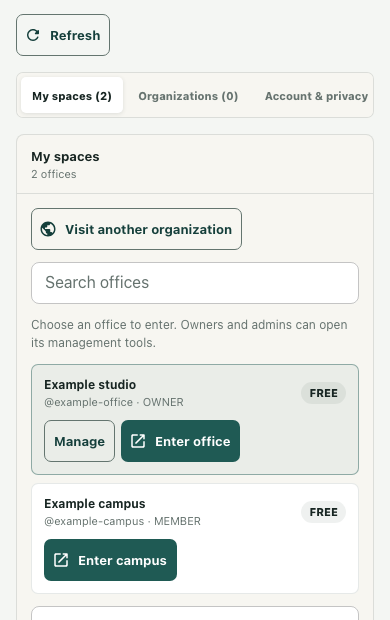
Suppose you belong to a studio and a campus, and need to choose the correct place for today's session. In the workspace and account panel, open My spaces and read the names and membership roles. This guide uses a fictional studio with an OWNER membership and a fictional campus with a MEMBER membership, displayed by the actual component in an isolated local fixture.
The image demonstrates the controls and those synthetic memberships. Its entry callback is inert: it does not admit anyone to a game or confirm that a connection succeeded. Use it to understand the choice presented by the interface, then judge any real entry result separately.
Search within the displayed memberships
Use Search offices to narrow the list by name or slug. In the example, studio leaves the Example studio row; campus identifies Example campus. Read the row's name, slug and role before choosing an action. Similar names across organizations can make a quick selection misleading.
My spaces filters for ACTIVE memberships and excludes GUEST memberships. A workspace returned elsewhere or available through a visitor route is not necessarily a row in this list. The fictional fixture supplies a guest and an inactive membership alongside the two active staff memberships; those extra rows are excluded. Do not infer that a missing row means the workspace was deleted.
No matching offices can also reflect your search text. Clear the search before concluding that the list has no applicable memberships. If you are not assigned to a space, follow the guidance shown for that state rather than expecting search to discover every office on the site.
Distinguish Manage from Enter
An active OWNER or ADMIN can see Manage on a row. The fictional MEMBER campus has no Manage action. Manage selects that workspace's management context; it is useful when you mean to inspect its available management tools rather than request entry.
Enter office and Enter campus identify the row's configured space mode. These controls require an active membership and an enabled entry action in the host interface. In the fixture, selecting Enter campus stores the campus selection and role, removes pending visitor or invitation context, and invokes the local entry callback once. That callback result is evidence of the component's action sequence, not successful admission or travel.
Avoid using Manage as an alternate entry button. Although both paths select workspace context, their subsequent actions differ. Opening the panel can also restore or choose a selected workspace during its initial load.
Confirm context and the eventual outcome
The component stores the selected workspace IDs in browser-local storage. It also updates the stored role when the selected active membership changes, including after Manage. The fictional check enters the MEMBER campus, then selects Manage for the OWNER studio; the resulting local role becomes OWNER. Role persistence does not grant a role on the server.
Before changing settings, confirm which row is selected and which workspace's tools you are inspecting. After requesting entry, look for the actual destination and connection outcome in the surrounding application. A selected row, a stored ID or a callback invocation cannot establish that result. Keeping those checks separate prevents a correct selection from being mistaken for a completed transition.