Create a framed artwork asset and prepare its placement
Start with the intended artwork and workspace
Work in the desktop editor of a workspace where you have OWNER or ADMIN permission and configured workspace image storage. The Choose artwork button becoming available does not establish those conditions: its initial readiness check is based on the browser's workspace context, while the server applies separate storage and membership checks.
For an illustrative exercise, use a small four-color image you created, rather than a private photograph or an image whose use is unclear. Confirm the map you are editing before importing anything. Creating an artwork resource is a workspace operation, even if you never finish placing it on that map.
Choose the frame before choosing the file
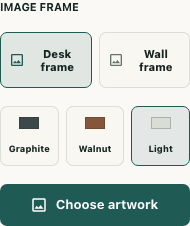
With the objects layer selected, open Asset library, then Custom assets and add-ons. Under Image frame, choose Desk frame or Wall frame and select Graphite, Walnut or Light. These choices feed the frame generator; they are not changes to the room's floor or wall finish.
Choose artwork opens the image selection route for PNG, JPEG or WebP. The generator fits the artwork inside a frame rather than making its original edges the frame border. Desk frames include a stand; wall frames use the wall-decoration route. Do not assume either choice creates an interactive image viewer.
The retained source is compressed and may be resized into WebP. It is not a promise to preserve the original file bytes, so keep your own original separately.
Distinguish the resource from the placement tool
The importer generates a framed image, prepares its upload, receives a managed image reference, updates the workspace asset pack and reloads the catalog. It then attempts to prepare placement. Catalog loading can also begin texture registration before that final step.
For Desk frame, successful preparation selects an ordinary object-placement tool. For Wall frame, it selects a custom wall-decoration tool and asks you to choose a wall cell. Selected feedback means the tool was prepared; it does not mean an object appeared or the map was saved.
Inspect the intended wall target before using it. The actual wall-decoration path can replace an existing decoration at that target, so choosing a frame is not a reason to click an occupied wall without checking what is there.
Read a failure before repeating the import
A non-image file or failed image decode can stop the operation before upload. An upload failure stops the later catalog update. A pack or catalog-reload failure can happen after the image receipt, leaving an uncertain partial result rather than proving nothing was stored.
A locked placement layer or failed texture registration can also prevent the placement tool after earlier stages succeeded. The native editor reports these conditions; separate that warning from the question of whether the resource already exists. A layer lock does not prevent every catalog texture preload.
Avoid repeatedly importing the same file to clear a warning. Frame catalog identities include a timestamp, so a later retry can create another entry. Even if identical image bytes reuse a server image record, that does not make catalog imports idempotent. Restore a working catalog view and inspect the intended entry before deciding whether another import is necessary.
Inspect the placed result before a separate save
Use the prepared tool only at the intended location, then inspect the full frame, contained artwork, surrounding objects and walking route. Confirm the actual result before separately saving the map and checking the save outcome.
The verified example used locally generated artwork and the original frame renderer. Upload receipts and catalog replies were memory-only adapters; texture and placement controls were inert callbacks. Its intact rendered borders establish that local example, not production storage availability, completed game placement or a saved map. Keep those outcomes separate when finishing your own check.