Create a new office from My spaces
Start with the space you mean to create
Use My spaces when you want a separate workspace for a team or activity. Adding another map inside an existing workspace is a different operation. Before creating anything, check whether an existing office or an additional map would meet the need without introducing another workspace to manage.
After signing in, use Open workspace on the home page, or Office access in its mobile menu, then choose My spaces. Where your account has the available creation route, enter First space name or New space name and choose Create first space or Create another space. Use a recognizable name with at least two characters. An empty name is stopped before setup opens; other validation can occur when you submit.
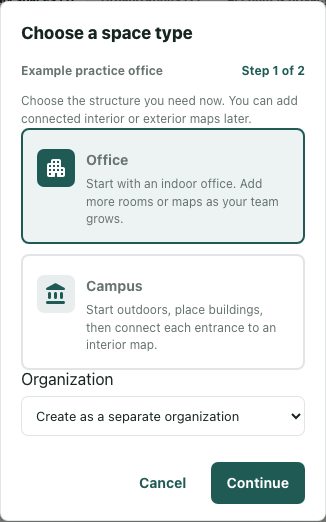
The illustrated example uses Example practice office and synthetic organization choices in the actual interface rendered locally. The displayed setup step was not submitted to create a workspace or organization, and it does not show an office being entered.
Inspect the organization every time setup opens
Choose a space type is the first setup step. Read the organization destination before continuing. The interface can default to an organization you manage, and opening setup again can recompute that choice. Do not assume that cancelling a previous separate-organization selection preserves it next time.
If the Organization selector is shown, choose the intended organization by its name. Create as a separate organization has a material consequence: the new workspace will belong to a newly created organization rather than the existing one. If no organization selector is available, do not invent an organization choice from the office name.
Creating within an existing organization requires its owner or admin authority. A visible control or a familiar organization name does not establish that the server will accept the request. Resolve an access error with the responsible operator rather than trying different destinations until something succeeds.
Choose the type and its starting surface
Select Office for an indoor start or Campus for an outdoor start. Inspect the selected choice instead of assuming Office is always the default; the current workspace context can influence it. This prepares the starting structure, not a finished arrangement of rooms, buildings or furniture.
Continue opens Choose a starting surface. Read the available options and select a compatible indoor or outdoor base. Changing type can change which surfaces are offered and which one is selected. If loading fails, use Retry and wait for options to return. If none are available, stop rather than treating the empty grid as a usable selection.
Back returns to the type step. Cancel closes preparation. Neither substitutes for the final Create action. The available surface choices help prepare the request; they do not establish what the eventual game will render.
Create once and reconcile the outcome
Review the name, type, organization and surface before choosing Create. While Creating... is shown, wait for the result rather than starting another attempt. A completed form is still preparation, and a click alone is not a created office.
Read any error without assuming nothing happened. Creation can have completed before a later response fails. A missing success screen, a name absent from the currently displayed list or an interrupted connection does not prove rollback. Before resubmitting, refresh the available workspace list and inspect any new entry. Match its name and available identity details with your intended office; a name alone is not confirmation. If the result remains uncertain, keep the error and intended details for the responsible operator.
After a returned creation result, the interface selects the returned workspace and requests entry. Check the actual destination and connection separately. A selected office identity or stored role does not prove arrival. Confirm the office before decorating, inviting teammates or beginning a session.