Create a separate blank map and choose it for editing
A separate map gives a workspace another layout identity. It is different from enlarging the map you already use or moving your character through a portal. Where you have the required management access, prepare the new resource in Maps, inspect the returned result, and deliberately choose which map to edit. A created resource is only a starting point, not a furnished room.
Check the workspace and its current limits
Open Manage workspace, select the intended office, and find Maps. Creation requires owner or admin access; an ordinary member or guest cannot obtain that permission simply by seeing a map in play. Check the current map count and the limits shown for the selected workspace before preparing another map.
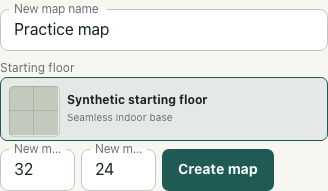
Use a descriptive New map name with at least two characters. New map width and New map height are tile dimensions, not screen pixels. The server accepts integers from 8 to 600 in each direction and separately checks the workspace's current map-count and tile-area limits. Staying within the dimension range alone does not establish that the proposed area is permitted.
Choose a starting floor for the new layout
Select an available option under Starting floor. These options come from the available surface catalogue and are filtered for starting-floor, seamless and walkable properties. Read the current selection rather than assuming it matches the floor of your existing map.
For the guide's synthetic example, the separate draft is named Practice map and measures 32 by 24 tiles. Its illustrated floor is a labelled placeholder, not proof of a production catalogue choice or the appearance your editor will render. An outdoor starting surface is distinct from an indoor one; choose according to the intended space and inspect the resulting layout later.
Distinguish the draft from a creation result
Create map submits the new resource request where the control and your permissions allow it. A filled form is still a draft. Read any validation, capacity or request error before treating the action as successful. The example form in this guide was not submitted to create a production map.
The implemented creation service initializes an editor layout with the selected floor fill and empty furniture, area and wall collections. It sets the layout to replace base-map contents rather than copying a furnished office into the new resource. That is an initialization contract, not visual proof of a finished editor view or successful persistence in your workspace.
Select the returned map before editing
After a successful creation result, the interface selects the returned map and refreshes its list. Check the map name and size under Selected map, then inspect the Office map selection before using Edit selected map. Choosing the wrong entry can open a different editing target even when the new-map form still contains the name you intended.
The isolated example demonstrates selecting a synthetic returned map and passing its workspace and map identity to a local editor callback. It does not show a real editor opening. Creating or selecting a map also does not create a portal connection or move your character there. Keep those separate tasks until the new layout and the intended editing target are confirmed.