Start the Kiguri demo: from product tour to playable office
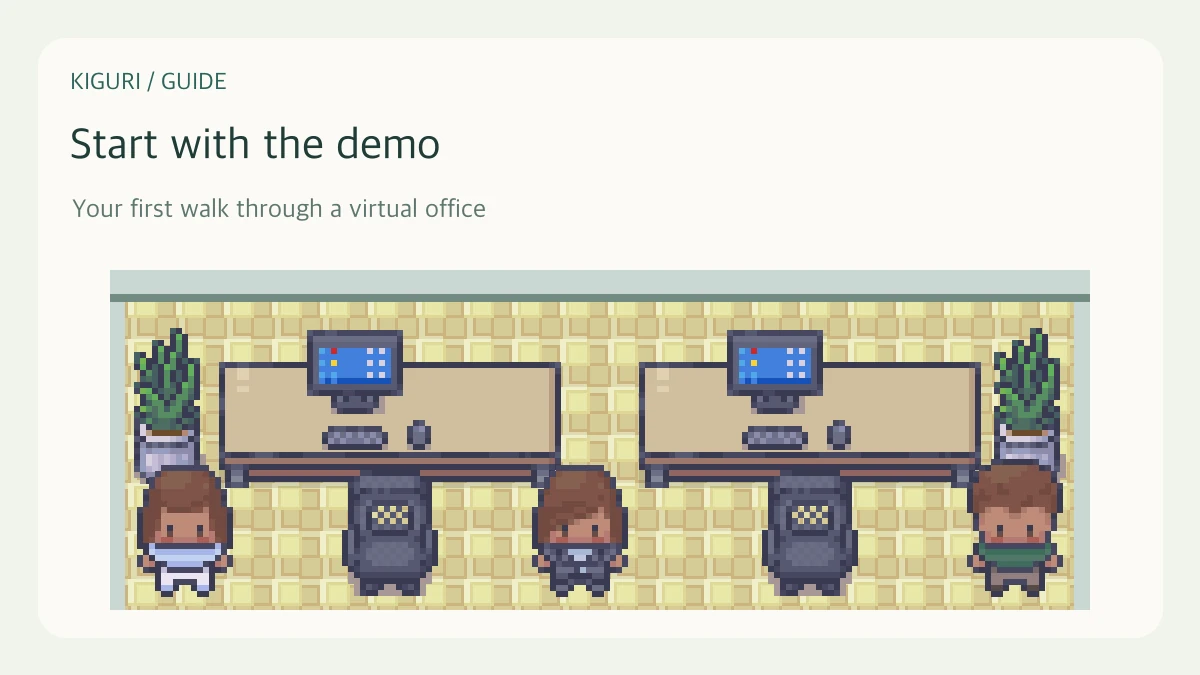
The product tour introduces Kiguri's spaces. The playable demo lets you move a character and use the office controls. You can explore before turning on your microphone or camera.
1. Open the playable demo
Visit /demo?play=1. If you are watching the Product tour at /demo, select Enter demo office. Selecting a scene in the automatic tour is different from entering the office. Bookmark the playable address if you want to return directly.
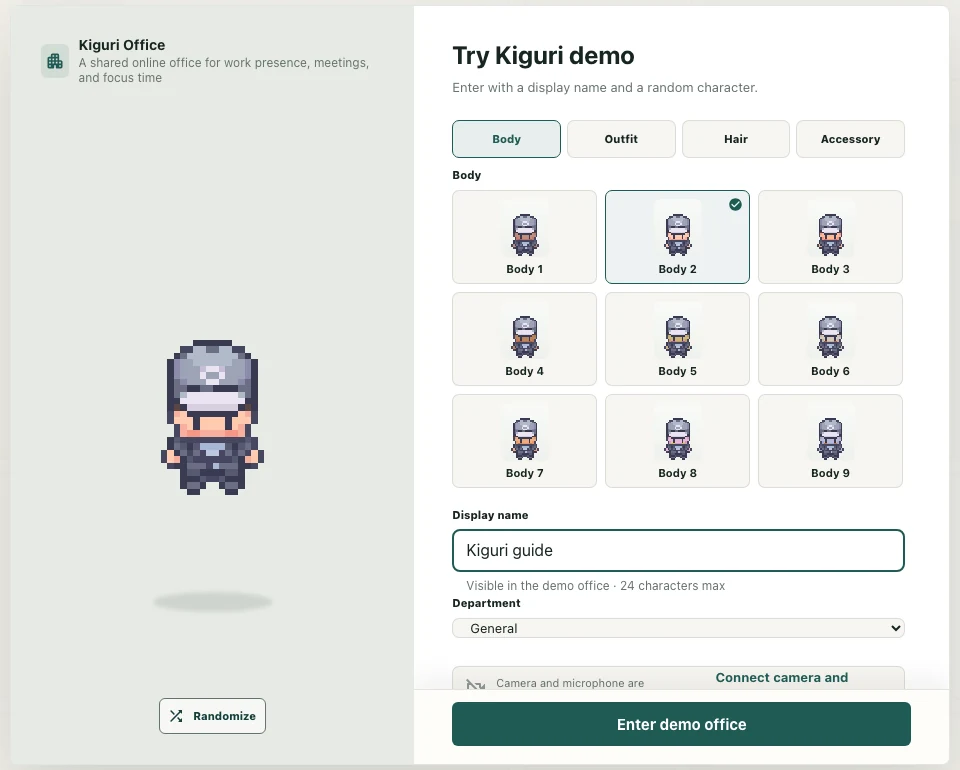
2. Choose a character and display name
Check your character preview, then enter a name in Display name. Other demo participants can see this name. A short nickname is enough; you do not need to use an email address or phone number. If the field is empty, follow the prompt to enter a name.
3. Wait for the office to load
Select Enter demo office. Joining... means the connection is in progress. Wait for the character and office controls to appear rather than repeatedly pressing the button. These controls distinguish the playable office from the product tour.
4. Try a short walk
Use the arrow keys or W, A, S, D in an open passage. Find the chat input at the bottom and the map control. If the chat input has focus, finish typing or select the game area before moving.
5. Connect devices when you need them
Entering the office does not automatically turn on your microphone and camera. Try movement and chat first. When you want to join a conversation, use the connection prompt or Join call and check any browser permission request. Testing a conversation requires another participant; an empty demo still lets you explore the space.