Share a screen from an office computer
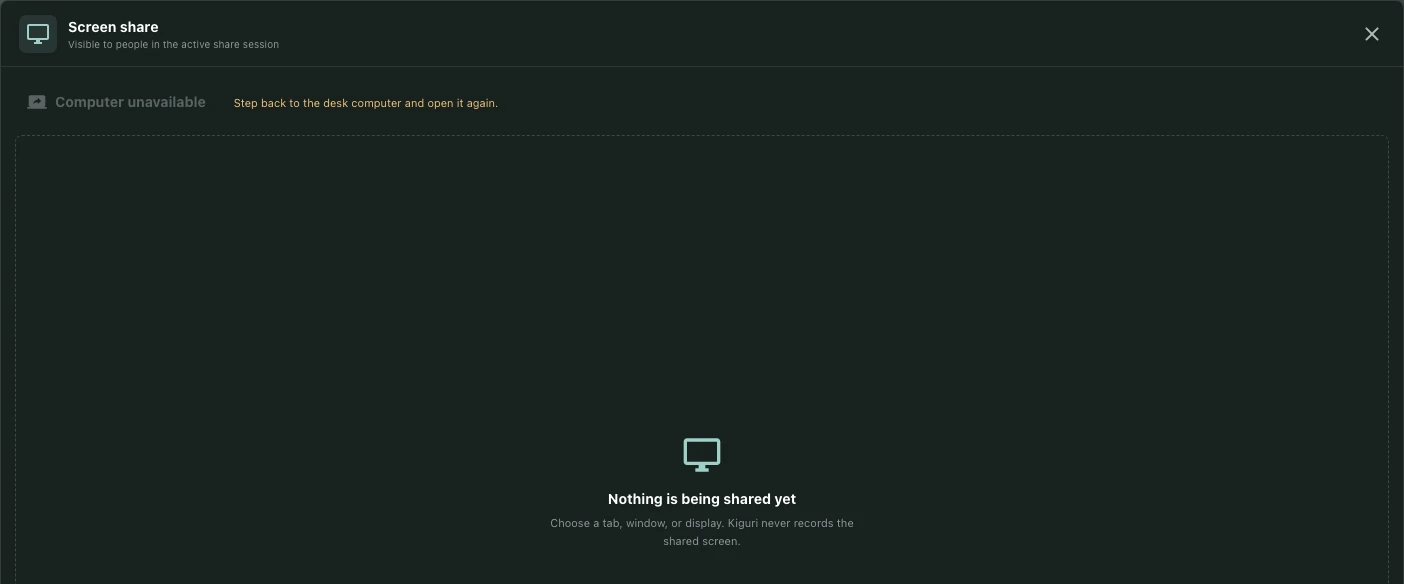
A usable desk computer opens a screen-sharing session. The window describes its audience as people in the active share session. Before sharing, decide which tab, window, or display contains the material you intend to show.
Open the interactive computer
Approach the desk computer in an accessible office and use its interaction control. Look for the Screen share window. If it says Computer unavailable, follow the notice to step back to the desk computer and open it again. A decorative computer image does not necessarily provide a sharing session.
Choose the smallest useful source
Select Share screen and use the browser’s source chooser. A single tab or window is often easier to inspect than an entire display. Close or hide personal messages and unrelated documents before choosing the source. The browser controls what can be offered; available choices and permission behavior can vary by device.
For a document review, open the document first, then choose its window. Avoid sharing a whole display simply because it is the first option shown.
Confirm the preview and audience
Starting... indicates that sharing is being started. Check the resulting preview and any error message. Your stream is labeled You, and incoming streams can show participant names. With another participant, confirm they are viewing the expected content in the same session. Starting a preview alone does not prove another person has received it.
Stop sharing explicitly
Use Stop sharing when the review ends, then check that the stream has stopped. Closing the computer window is a separate UI action; do not use it as your only confirmation that sharing ended. If sharing fails, inspect the error, chosen source, browser permissions, and computer availability before retrying. No single successful test guarantees every browser or workspace configuration.