Check microphone, camera, and device controls before a call
Muting a microphone during a call and choosing how the next call starts are different actions. Check the current connection, join preferences, and browser permissions separately. A missing camera image does not by itself mean you have left the office.
1. Check the media connection
In the playable office at /demo?play=1, inspect the media panel. If it says Audio/video off, connect before trying to change microphone or camera state. Select Join call and check the result. If Connecting... remains or an error appears, read it before trying again.
2. Control microphone and camera separately
Once connected, use the microphone and camera buttons individually. Muting one does not necessarily turn off the other. Check the icons and their status descriptions. A participant with the camera off can appear as a name portrait instead of live video.
3. Check join preferences in Calls
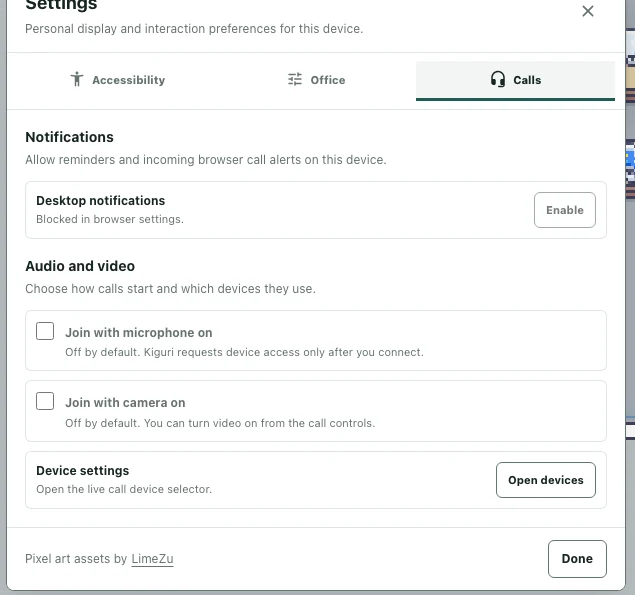
Open Settings → Calls and inspect Join with microphone on and Join with camera on. These preferences apply when starting a media connection. For a call already in progress, check the live media panel. Checking both helps you avoid using a device unintentionally.
4. Open Device settings
Select Open devices under Device settings to open the live call's device selector. If you use a headset or external device, choose from the devices actually listed. If a device or selector is unavailable, check media connection and browser permission first.
5. Resolve permission errors
If you see Camera or microphone permission is blocked, review the site's permissions in your browser. Repeatedly pressing Connect does not change a denied permission. After changing permissions, retry and verify the current microphone and camera states. Managed devices may have restrictions you need to discuss with the device administrator. Available controls do not guarantee success on every browser and device combination.