Start a direct conversation without losing the channel
Workspace chat can include shared channels and direct conversations. A direct conversation is a separate destination for a message, not merely a different view of the same room chat. Check the selected conversation each time you switch.
Check which chat experience you have
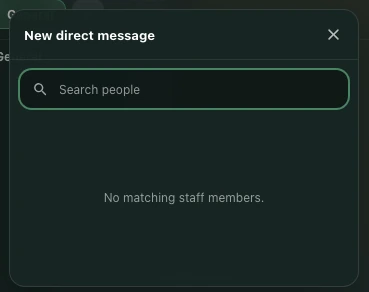
Expand the bottom chat panel. The header distinguishes Workspace conversations from Live visitor conversation. New direct message is offered when staff chat is available. A public demo or visitor view may not expose the same member conversations as a signed-in workspace member.
Do not assume a missing button is fixed by refreshing: first check the account, workspace, and chat experience you are using.
Choose a member deliberately
Select New direct message and use Search workspace members in the picker. Read the person’s displayed identity and role before selecting them. Similar names can be ambiguous, so confirm the intended recipient rather than choosing the first matching label.
If you cannot find someone, check that you are searching the correct workspace. This flow does not create a new account or grant another person workspace access.
Verify the conversation before sending
After selecting a member, check the active conversation label and message input. Write a short, non-sensitive first message and confirm it appears in that conversation. Text remaining in the input is still a draft. A direct message also does not establish a voice call.
Switch channels without mixing recipients
Use the channel tabs to return to a shared conversation. Unread indicators help you see other activity, but the active tab determines where your next message goes. Read the label again before sending. If Offline appears, keep the draft and verify the connection before retrying. Rely on the history and recipients actually available to your account, not on an assumed organization-wide archive.