Place usable chairs and adjust the seated position
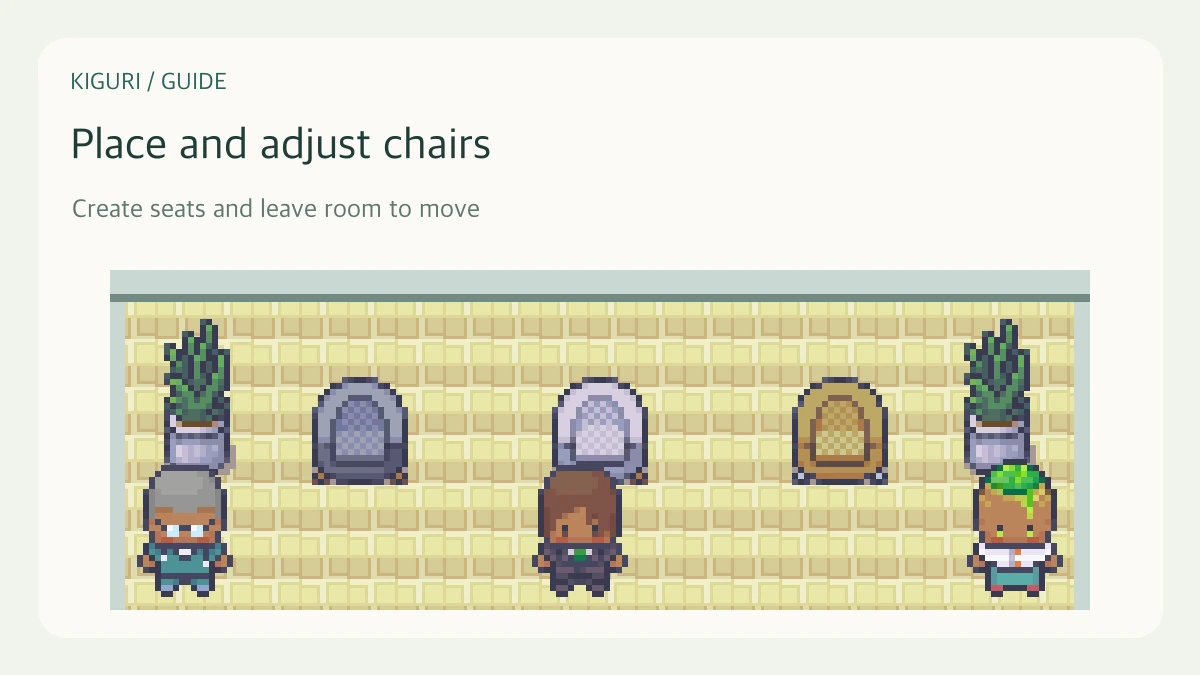
A chair should look right and work when someone sits on it. The editor exposes seat controls for usable seats. A decorative image that looks like a chair does not necessarily provide sitting behavior.
1. Place and select a usable seat
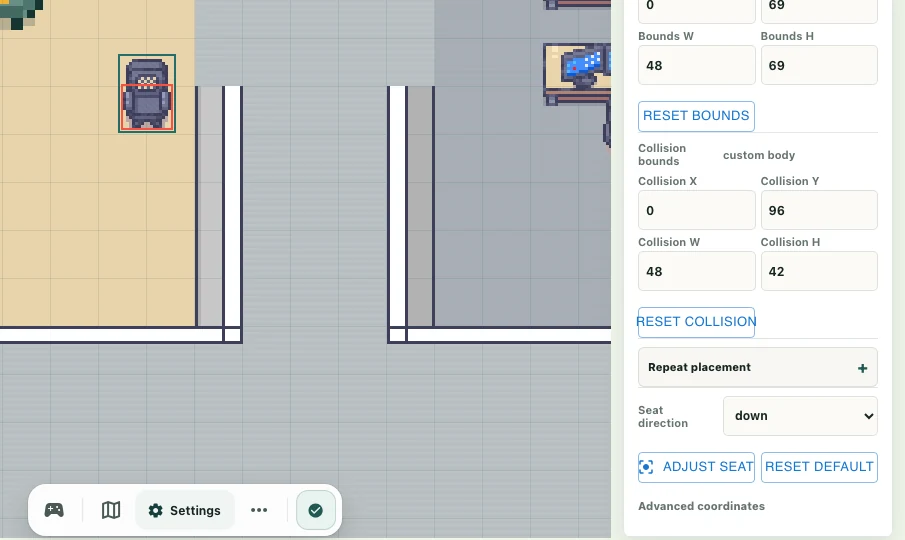
Open Edit map in a workspace you can edit and place a chair. Select it and look for controls such as Seat direction or Adjust seat. The available controls are a better indication of seat behavior than the image alone.
2. Leave room to approach
Keep an accessible passage in front of or beside the chair. A chair tucked under a desk can look good while leaving too little room to approach. Check one seat before duplicating a row; correcting the original first makes the rest easier to place.
3. Check Seat direction
Match the seat direction to the chair image where the control is available. Chairs with a verified fixed pose can have direction changes disabled. Use their provided pose when arranging them rather than treating the disabled control as an error.
4. Use Adjust seat
Select Adjust seat to drag the seat marker or use fine adjustment controls. The arrow-key guidance includes holding Shift for a four-pixel step. Select Done when finished. Use Reset default if you want to compare your changes with the original position.
5. Test the pose and depth
Check Seat X, Seat Y, and Seat depth if needed. Position and drawing depth are different settings, so make small changes. Leave editing mode, approach the chair, and release movement input to sit. Inspect the seated pose and desk overlap, then use movement to stand and try another approach. Save changes and confirm success once both the layout and actual sitting work.