Check a building’s collision footprint before opening a route
A building can occupy more visible space than its collision footprint, or have an entry that needs careful checking. Moving its artwork until a doorway looks open is not enough. Inspect the collision pieces and test the actual passage.
Select the building and show collisions
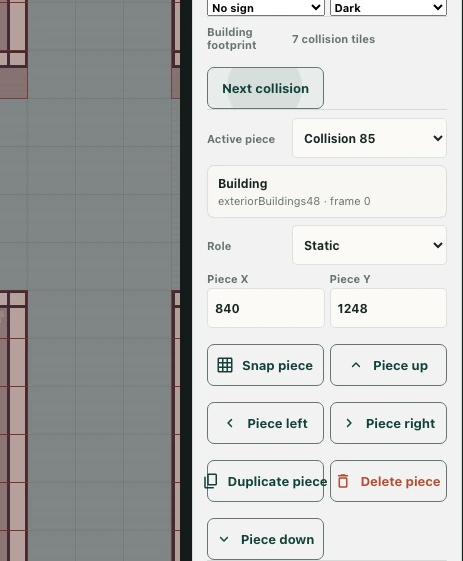
Open the editor in a workspace you can modify. Select the building and inspect Building footprint in its properties. Use Edit collision footprint to locate a collision piece; Next collision moves through the available pieces. The editor turns on collision display for this inspection.
This is different from a decorative building image with no editable footprint controls. Work with the controls actually available on the selected object.
Compare the visible edge with the blocked area
Look at the intended entrance and the displayed collision shape. A useful example is a narrow passage beside a building: the artwork may leave a visible gap while collision still blocks the path. Inspect the relevant edge rather than modifying every piece at once.
Selecting a collision piece helps you identify what you are changing. Keep track of whether you are editing a footprint piece or a visible part of the assembly.
Make a limited change and inspect the assembly
Use the piece controls provided for the selected item and recheck the overall building. Preserve the parts that should remain solid. Removing every obstacle just to make an entrance work can leave walls traversable and change the intended route.
Verify movement in normal play
Leave editing mode and test the passage from both directions. Show collisions is a diagnostic display, not a guarantee that a character can reach the route or that access is permitted. Also check nearby objects and area restrictions. Save the accepted layout and confirm success. For a reported blockage, include the building, the approach direction, and whether the displayed collision footprint covers the visible opening.