Edit floors and walls while keeping a clear passage
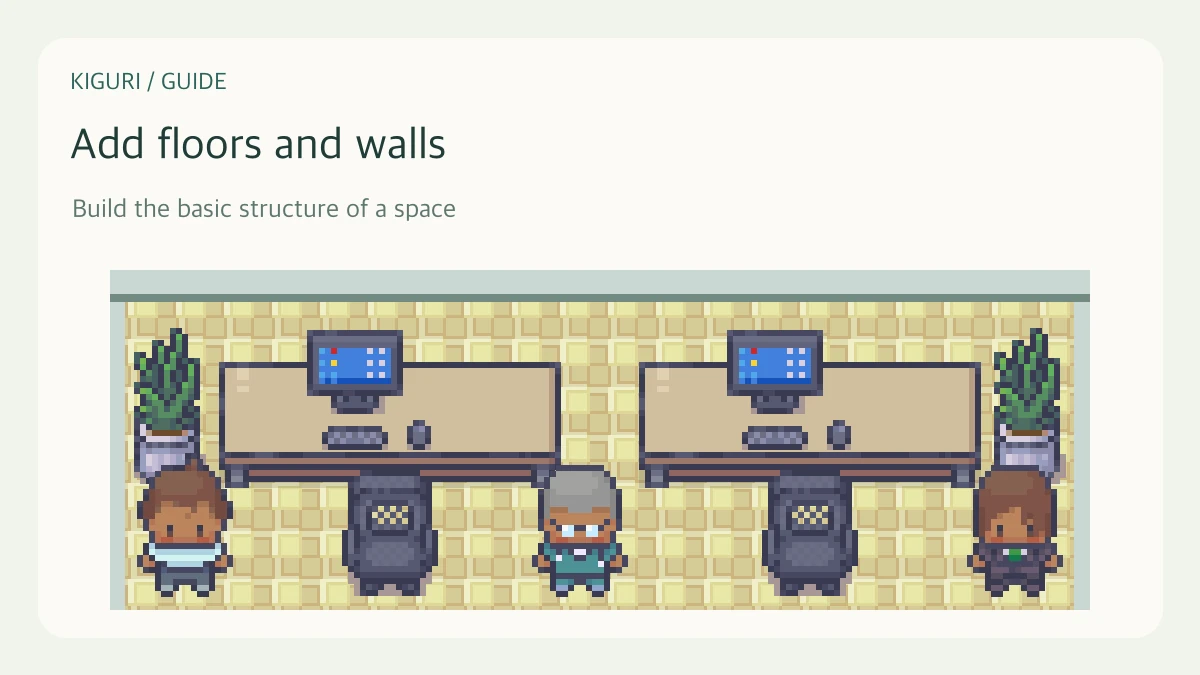
Floor finishes define a space's appearance. Walls define boundaries and movement routes. Use the tools separately and check where a character can actually walk, not just how the room looks.
1. Confirm your map and editing access
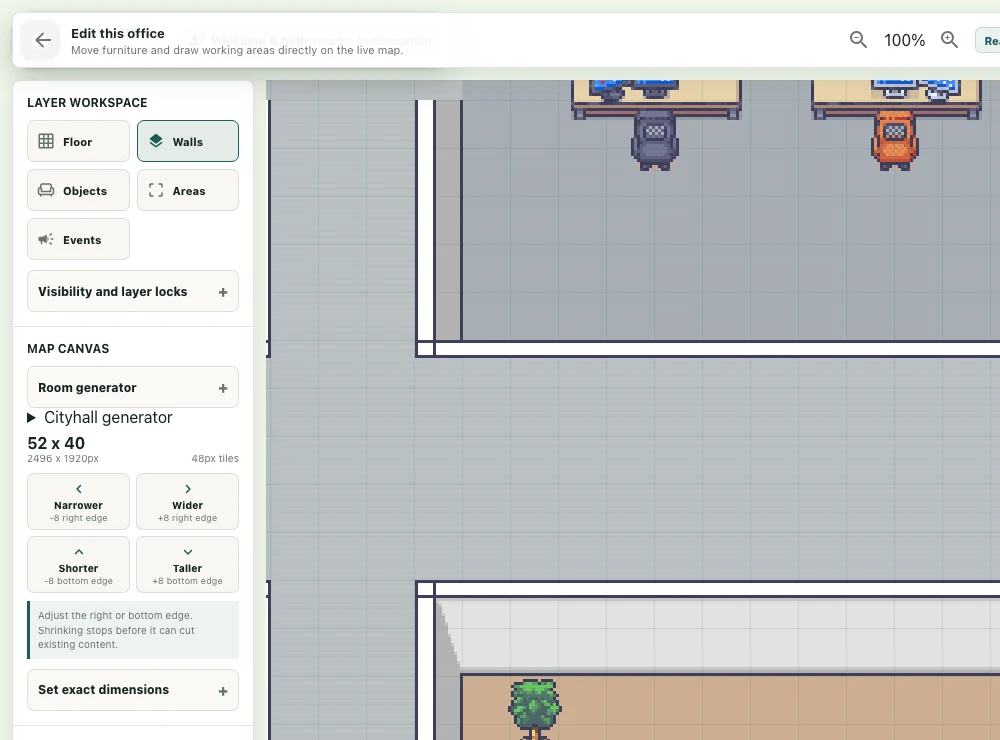
Open Edit map in a workspace where you have permission. Follow screenshots against your own map and access level. Exploring the public demo is different from saving edits to an organization's office. Check the map size and existing entrances before making changes.
2. Choose a floor finish
Under Floor finishes, select a finish and try it on a small area. Inspect the color and boundary before painting more of the map. Separate meeting rooms, passages, and break areas by purpose rather than making every boundary visually complex.
3. Switch to Walls & doors
Choose a wall tile and check its direction. Confirm the active tool instead of expecting the floor brush to place a wall. Leave a usable passage at entrances. Avoid enclosing a room completely before checking how people will enter it.
4. Distinguish decoration from the wall
Wall-mounted items add visual decoration. Placing one does not automatically change access rules or movement routes. Check that artwork and other decorations appear whole rather than being clipped by overlapping walls. When removing content, choose the floor or wall tool appropriate to what you intend to change.
5. Test movement and save
Inspect door approaches, desk gaps, and room boundaries. Leave editing mode and test character movement to catch blocked routes you might miss from the layout alone. Save changes and confirm success after correcting the layout. Editor screenshots explain the actual product interface; a review example map is not necessarily the map in your workspace.