Inspect a JSON map import before saving it
Importing a map file can change much more than the visible object you are checking. Treat an import as a draft replacement to inspect. A file being accepted does not establish that the resulting layout is ready to save.
Preserve the current layout first
Open the intended map with editing permission. Before importing, create a named checkpoint and use Export JSON if you need a separate file. Check the downloaded file. This gives you a reference if the import is wrong or replaces changes you still need.
Use a file whose source and intended map you understand. Do not experiment on an important unsaved layout simply to discover what an unfamiliar file contains.
Choose the matching import control
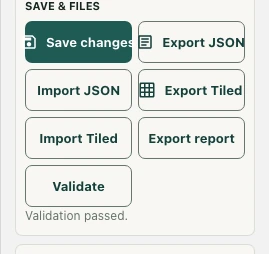
Save & files provides Import JSON and a separate Import Tiled control. They call different import routines, so a JSON extension alone does not identify which layout format is appropriate. Choose the control that matches the exported format rather than repeatedly retrying the same file through unrelated controls.
Read the result and inspect the reload
If the import fails, the editor displays an error. A successful Import JSON reports that the layout is imported and reloads the map to apply it. It also marks the layout as changed. This is not the same as uploading a finished server map.
After reloading, check map size, furniture, areas, doors, and functional objects. Confirm that the imported assets actually render instead of assuming a parsed file guarantees complete images.
Validate, test, then save
Use Validate and read any warnings. Export report can preserve diagnostic information. Test walking routes and relevant interactions outside editing mode. Resolve discrepancies before selecting Save changes, and confirm the server result. If you reject the import, restore the preserved draft deliberately rather than saving a partially inspected layout to make an error disappear.