Resize an editor map without cutting existing content
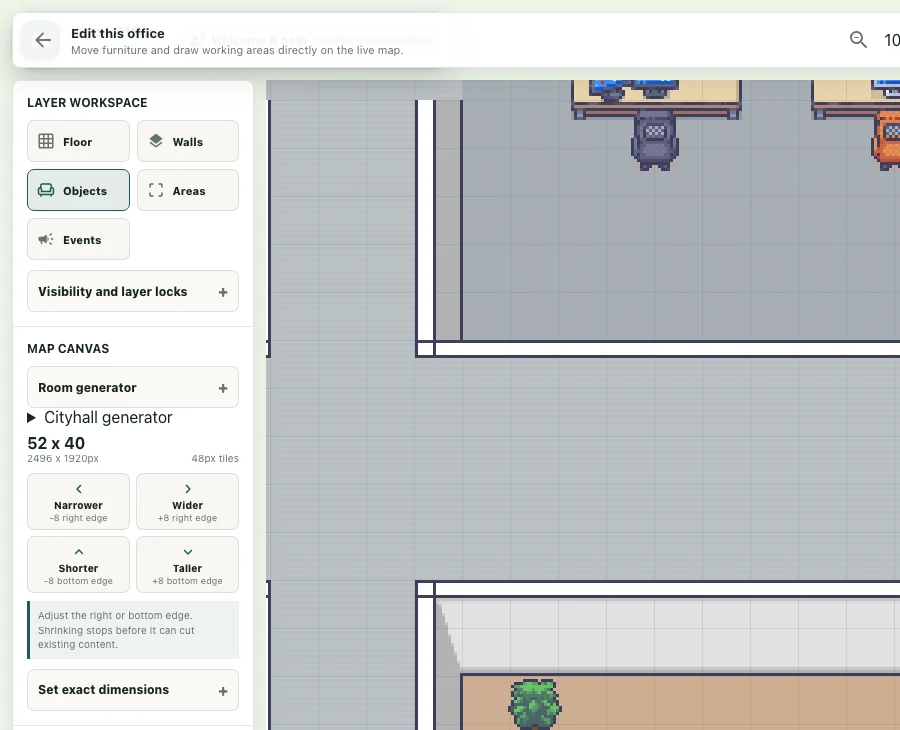
Map resizing keeps the top-left origin fixed and changes the right or bottom edge. To avoid cutting furniture or areas, shrinking checks the content affected by the new boundary.
1. Open a map you can edit
Sign in to a workspace where you have editing permission. Select Edit map under More office actions and confirm the map name. A public demo visit does not grant permission to edit an organization's map. If the menu is missing, check your role and workspace first.
2. Choose the extension direction
Find the right-edge and bottom-edge expansion controls. A +8 action adds tile space along that edge. The top-left stays fixed; do not expect the entire existing layout to shift. Decide where your additional space belongs before extending.
3. Set exact tile dimensions
Expand Set exact dimensions and adjust Width (right edge) and Height (bottom edge). Values are tile counts, not screen pixels. The displayed range is 8 to 600. Read the current-to-requested size comparison and direction preview, then use Apply extension.
4. Clear the boundary before shrinking
Inspect affected furniture, groups, and areas. If the new boundary cuts existing content, resizing stays disabled and lists items to move or remove. Move anything you need inward and check again. Use Confirm edge removal only when the removed edge can be cleared safely.
5. Review finishes and save
Check the expanded space and add floors, walls, and passages as needed. A larger canvas does not complete the room layout for you. Confirm furniture and arrival points remain inside the map, then use Save changes and verify success. Reset restores the size inputs while you are adjusting them. Do not refresh or close the tab before confirming server save.