Save a map and export JSON before reloading
A changed map on screen is not proof that server saving has finished. Save changes, Export JSON, and Save checkpoint have different purposes. Confirm the server result and keep a separate file when you need one.
1. Confirm the workspace and map
Open the editor while signed in with permission for that workspace. Public demo access and permission to save an organization's map are separate. If you have been moving between maps, check which one you are editing before continuing.
2. Read the save state
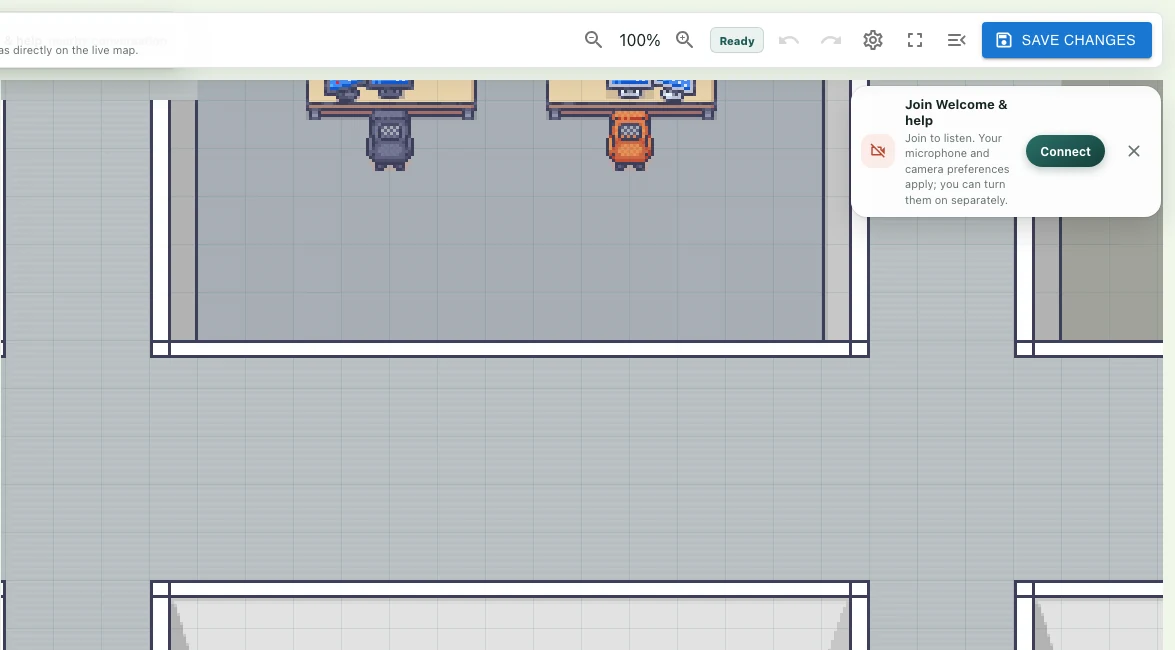
Select Save changes after editing. Saving... means the request is in progress. Map saved to the server. confirms success. Pressing the button or seeing the layout remain on screen is not enough. Wait for the result instead of repeating the save action.
3. Handle warnings and failures
Validation warnings can produce a confirmation before saving. Read them and decide what to fix. If sign-in or runtime configuration is not ready, the editor asks you to sign in to save. Server save failed leaves unsaved changes in the tab. Preserve the work before refreshing or closing that tab.
4. Use Export JSON for a separate file
Under Save & files, Export JSON downloads the current layout. Check that the file was downloaded and note its name. Exporting does not replace server saving. Treat Save checkpoint separately too; do not assume a checkpoint is a successful server save or is available on another device.
5. Reopen and compare
After confirming server save, close the editor or reopen the map and compare the changes. Check furniture positions, map size, floors, walls, and seat directions. If something has reverted, note the map name, editing time, and save message. Checking the downloaded file and server result separately helps you identify where your work is stored.