Recover an editor change with Undo and Redo
Undo is useful when a small layout change goes wrong. It works with editor history snapshots, while server saving is a separate operation. Use it to recover the intended draft, then decide whether that draft should become the saved map.
Identify the change you want to reverse
Before clicking repeatedly, name the problem: a moved desk, an unwanted placement, or a changed boundary. Keep the affected part of the map visible. If you need a broad redesign rollback rather than a recent change, a named checkpoint may be easier to inspect than many Undo actions.
Step back through available history
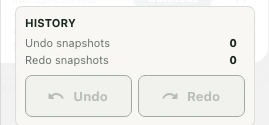
Use Undo in the editor controls or the Advanced editor History section. The panel lists Undo snapshots and Redo snapshots, and disables unavailable actions. The editor reports what it undid.
Inspect the map after each action. A snapshot may contain more than the one visual detail you are watching, so compare nearby furniture, areas, and boundaries too. Treat the restored layout as a draft state to review.
Use Redo to compare carefully
Redo applies an available forward snapshot. Compare before and after to decide which version you want. History is tied to editor layout states; it is not an unlimited audit trail of every organization member’s server edits.
If you make a new edit instead of moving through history, do not assume the same forward path will remain available indefinitely. Check the current history counts and controls.
Save the chosen result
Once the draft is correct, use Save changes and verify the server success message. Undoing a local change does not by itself establish the server’s current contents. Reopen the map after a confirmed save if you need a final comparison. Keep a checkpoint or exported file before a large experiment rather than relying on Undo as your only long-term backup.