Give an existing office member a workspace management role
Agree on the office responsibility first
An existing office member may need management access to maintain the layout or help administer the space. Agree on that responsibility before changing their role. Choosing ADMIN grants workspace management authority; it is more than naming a session helper, and it does not give every OWNER capability.
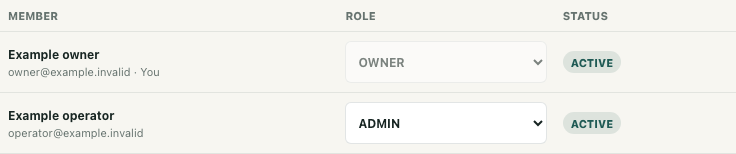
This guide uses fictional Example owner and Example operator in Example studio. The operator already has an ACTIVE MEMBER membership. The native illustration uses synthetic accounts and an in-memory ADMIN response. It shows no actual role change, delivered permission or working session.
Identify the existing active member
As an active workspace OWNER, open the intended office's management context in My spaces. Confirm the office name before using Space admin and Search members. Read the intended person's name or email, current role and status together. A pending invitation is a different record; this operation changes an existing member.
For the example, find Example operator with MEMBER and ACTIVE. On a narrow screen, the table can clip columns horizontally. Keep the row's identity in view or recheck it when moving across the table. A crop showing a role alone cannot establish whose authority is being changed.
The role control is disabled for your own row and inactive members. An ADMIN has fewer available assignments and cannot use this interface to promote the operator to ADMIN. Ask an authorized OWNER rather than treating another visible control as a workaround. If the intended member is inactive, this role operation is not their restoration path.
Make one ADMIN selection
Confirm the agreed person and responsibility before selecting ADMIN in that row. The selection submits immediately; there is no separate confirmation step. While the request is pending, wait rather than selecting roles to discover which one takes effect.
After a returned update, inspect the intended row's role and status. The example's supplied response shows ADMIN and ACTIVE. Assigning a role does not itself suspend membership or perform the resource cleanup associated with deactivation. It also leaves the original owner in place: this is delegation, not an exclusive ownership transfer or a departing owner's completed exit.
Read errors beside the returned state
A rejected update can leave the previous role displayed. An older success message can also remain beside the new error. Read both in the context of the action you just attempted; a success banner is not confirmation of the latest selection.
There is another possible combination: the update returns ADMIN, then the panel's context reload fails. The returned row, a role success message and a reload error can coexist. Keep the accepted response separate from the failed refresh. Resolve the loading problem and inspect current membership again through the office management view before making another change. Do not repeatedly submit role selections merely to clear a message, or assume every refresh control reloads this member table.
Have the successor check their own office context
Ask the operator to inspect their own current Example studio membership and management view. With an active ADMIN membership, the available My spaces context offers Manage and Space admin. Check the selected office rather than relying on the outgoing owner's screen or browser-stored role text. These checks do not require changing a setting to prove authority.
Workspace roles are separate from organization roles and conference host control. ADMIN does not make the operator an organization owner or a meeting host. Role changes can affect connected sessions, but this workflow guarantees neither immediate disconnection nor immediate permission propagation. Controls can refresh automatically as well as through context checks. Finish with the agreed responsibility, observed membership role and any unresolved access problem; do not claim a completed handoff from the role message alone.