Inspect recent organization audit rows before investigating a change
Establish the organization you are investigating
Open the workspace and account management screen, choose Organizations, and select the intended Organization. The organization is a separate context from the office selected in My spaces. Check the displayed organization slug as well as the selector before interpreting its records.
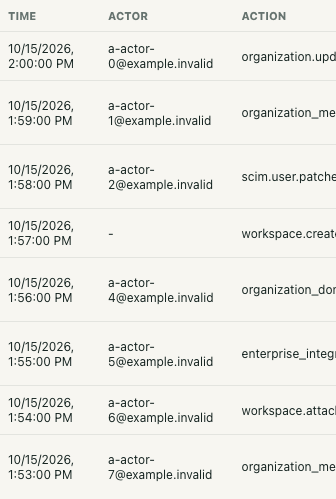
The table toward the bottom has Time, Actor, Action, and Target columns. Its visible management branch supports organization owners, admins, and security admins. A billing-admin role does not show this table in the current panel. An absent table therefore needs context before you draw a conclusion. On a small screen, scroll horizontally to inspect Action and Target. The mobile crop does not establish a complete row or organization context.
The isolated example uses two fictional organizations; the interface screenshot shows synthetic rows for one selected organization. No real logs were fetched and no organization setting was changed. The example demonstrates how to inspect the available rows, rather than proving that a live administrative action occurred.
Read one row as a connected observation
Keep Time, Actor, Action, and Target together. Time is the audit record's creation timestamp, formatted using the browser's locale and timezone. Establish the timezone when comparing another person's screenshot; do not assume it gives the exact instant every underlying change happened.
Actor displays the currently linked account email, or a dash when unavailable. It is not an immutable historical identity. For some provisioning actions, the recorded account is the subject of the change rather than proof of which human operated an external system. Preserve that distinction when asking who initiated something.
Read the literal action and target type with the opaque target identifier. In the fictional table, organization_member.updated appears beside an organization-member target. Keep that identifier in your investigation note instead of replacing it with a guessed person's name. A dash leaves information unresolved.
Check whether the action answers your question
An organization-member update can accompany cascading workspace-access changes. Its row alone does not establish which specific office reached which state. The ordinary workspace Suspend and Restore path does not itself write an enterprise audit event, so this table cannot substitute for checking that member's actual workspace status.
For example, finding the fictional organization_member.updated row answers which organization event is recorded. It does not settle a separate question about an ordinary workspace suspension. Record the supported observation and keep the workspace-state question open.
Action names identify selected event-producing workflows, not every action someone could perform. The table does not expand metadata or explain why a change happened. Ask a precise follow-up when the raw action and target are insufficient; do not change a setting merely to generate a more convenient record.
Apply the list's coverage limits
The service requests up to 100 recent records for the selected organization, newest first. This panel displays only the first eight. An older record can be outside the visible subset, and this table offers no pagination or detail expansion.
A successful empty response hides the table without an explicit empty-history message. Missing rows cannot establish that nothing changed. Some operations change data before a separate audit write, and some audit failures are caught. An operation error or absent event therefore does not prove the underlying data remained unchanged.
Resolve stale context before attributing a change
A failed organization switch can leave old organization details and rows visible beside a newly selected organization and a warning. Global Refresh is not a dedicated audit reload. In the isolated check, it cleared the warning while retaining the old rows and mismatched organization context.
Stop attribution when those indicators disagree. Reopen management through the ordinary flow, select the intended organization again, and inspect the successfully loaded context. Finish with the organization, row tuple, time context, coverage limit, and unresolved question. A completed refresh button action alone cannot certify that the displayed records are current.