Enter with devices off, then connect to listen
You can explore Kiguri before using your microphone or camera. Entering the office and listening to a connected call are different states. Devices being off does not mean you can already hear the conversation.
1. Enter without connecting devices
At /demo?play=1, choose a name and character, then select Enter demo office. Microphone and camera defaults start off. You do not need to turn them on before entering. Try walking and the bottom chat panel first.
2. Read Audio/video off
In office · Audio/video off means you are in the space but your media connection is off. You can explore the map while waiting for another participant. Your name appearing in the office is separate from being connected to a call.
3. Connect when you want to listen
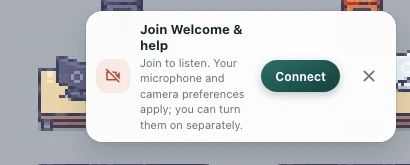
A connection prompt may appear in a conversation area or near participants. Use Join call or the prompt's Connect button. Check the state after Connecting... and read any error message. Closing the prompt does not connect you to the call.
4. Check microphone and camera preferences
In Settings → Calls, inspect Join with microphone on and Join with camera on. For listening without speaking, leave the microphone-on preference off and check the camera preference too. After connecting, verify the current media controls. Listening · Microphone off indicates a connected state with your microphone muted.
5. Troubleshoot in order
Check the call connection, whether another participant is present, whether the area allows conversation, and the selected devices and browser permissions. If Audio/video off remains, connect first. If connected, also check output devices and the other participant's microphone. These controls concern conversations inside the browser office; they do not establish that external phone-number calls are configured.