Use the minimap: find a portal, then change maps
The minimap shows the layout and your position. Its fast travel controls move your character within the current map, including to a portal's vicinity. Changing maps is a separate step: use the actual door or portal after you arrive.
1. Open the map inside the office
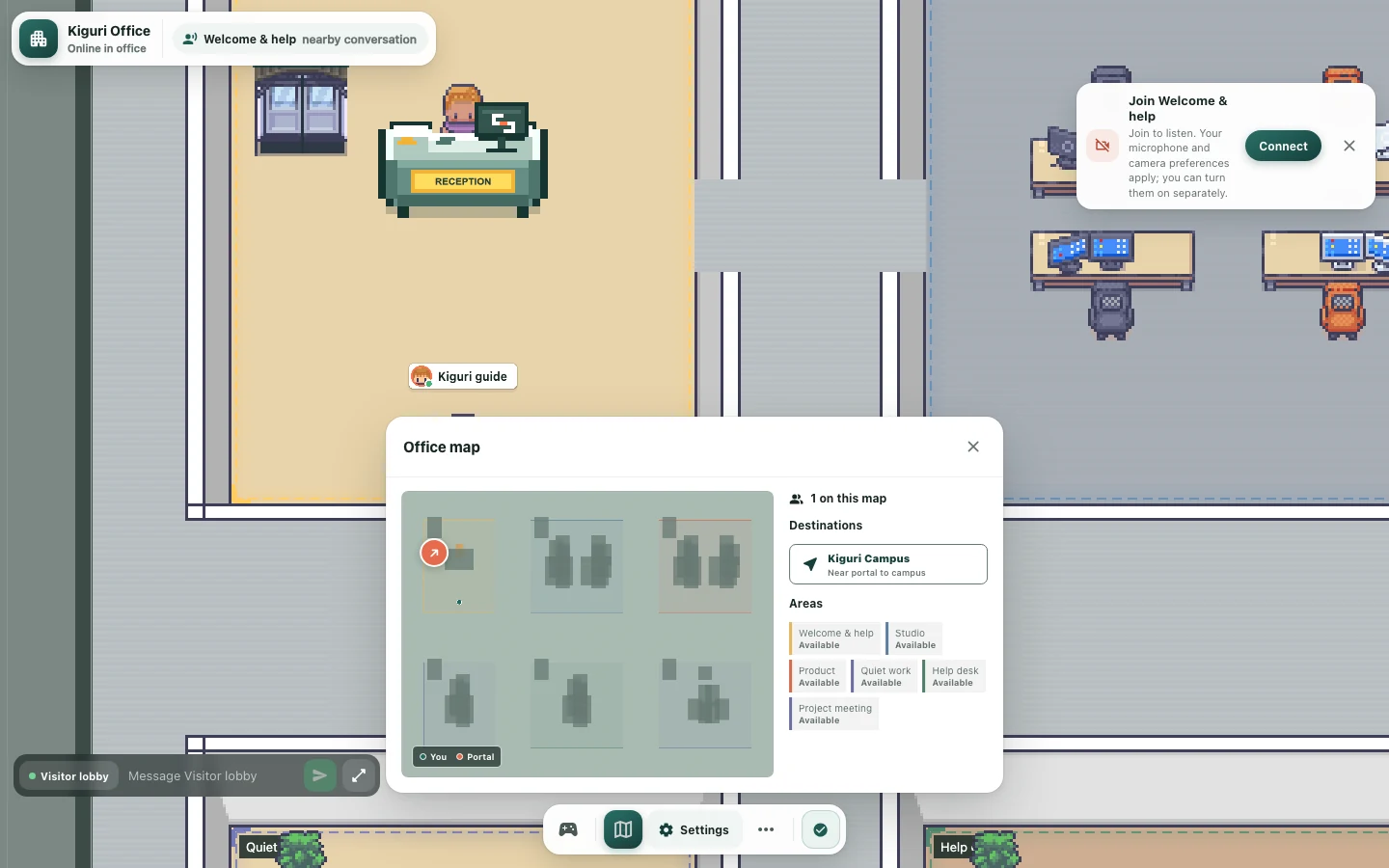
Enter /demo?play=1 and open the map control. Look at the relative positions of rooms and buildings. The minimap describes the current map. After a portal transition, check the map and its name again.
2. Read the legend
You marks your position. People appears when other participants are on the current map. Portal marks a connection point. The participant count describes people on this map, not total signups or new customers.
3. Select an available destination
Read the name and description under Destinations, then select an enabled button. Fast travel moves you to that location or near its portal within the current map. Even if the destination mentions another map, selecting it does not itself complete the map transition. A disabled button is unavailable under the current conditions.
4. Use the door or portal after arriving
An available portal marker on the minimap also helps you reach the connection's vicinity. Close the map and move your character toward the actual door or portal. Check that the transition takes place. Areas and Map locations describe places; not every listed name is a travel button.
5. Confirm the new map
Check the map name and surroundings after using the portal. Staying on the same map immediately after fast travel can be expected. If you reached the portal but have not crossed, check the actual portal and any access message. Once you arrive, take a few steps into an open passage and reopen the minimap.