Character not moving? Check keyboard and mobile controls
When your character does not move, first check where your input is going. Chat, movement, and editing have different controls. Walls and furniture can also stop movement even when the keyboard is working.
1. Test the keyboard in an open passage
After entering /demo?play=1, use the arrow keys or W, A, S, D. Test one direction at a time away from furniture. If you are against a wall or desk, try moving sideways or back into the passage to distinguish collision from an input problem.
2. Check the chat input
If the chat field has focus, your keys may be typing a message. Finish the message or select the game area before testing movement. Remove any accidental text before sending it. Check focus before refreshing the page so you do not lose your draft unnecessarily.
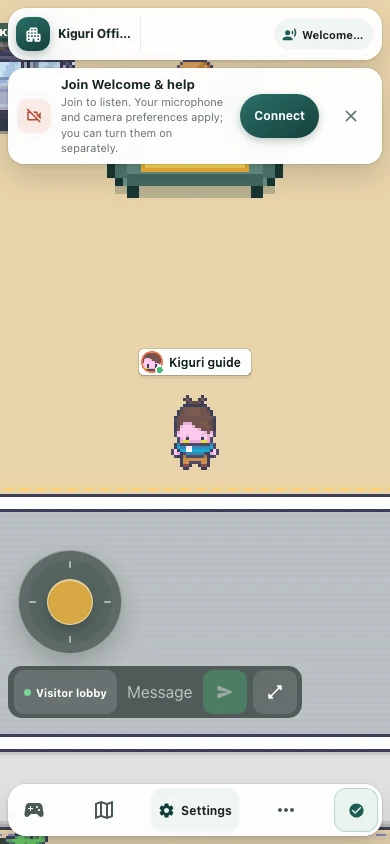
3. Use the movement pad on touch devices
Press the movement pad and move toward the direction you want to travel. Release it to stop. If the pad is missing, check whether expanded chat or another workspace tool is open. The pad can be hidden while those interfaces are in use.
4. Check Movement pad in settings
Open Settings, then Office, and look for Movement pad. This controls touch movement controls on a touch device. Turning it on does not mean every desktop will show a touch pad. Use the controls appropriate to your device.
5. Distinguish sitting from editing
Movement input lets a seated character stand up. In the editor, navigation and editing controls work differently from character movement. Close the editor to test walking. If movement fails only at one location, note that position. If every direction fails in an open passage, check your connection and browser state.