Navigate the editor without moving the selected furniture
The editor has controls for moving the view as well as controls for moving furniture. Keep those actions separate when a destination lies outside the visible canvas. Start with a selected object's position, navigate the view, and then check that you still have the intended selection. The example images show native controls with synthetic state in an isolated editor; actual game rendering was not exercised.
Establish the editing mode first
Open the office editor with the required workspace access. Identify the selected item and read its X and Y fields. For a simple check, note the coordinates of one desk before navigating. Keep a text field out of focus when you intend to use navigation keys.
Also check whether Adjust seat is active on a selected chair. That mode changes the meaning of the arrow keys. An input that is useful for fine seat calibration can be an unintended edit when you expected to pan. Finish the adjustment with Done when complete, then use WASD or the dedicated navigation controls to pan. Ordinary arrows can still move selected furniture.
Use the dedicated navigation controls
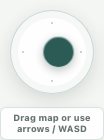
Find Pan map and its joystick. Drag the joystick in the direction you want to inspect, then release it to stop requesting movement. Center map returns the editor view toward the map's center; it does not move a desk to that location.
The editor's navigation caption identifies arrows and WASD. Prefer WASD when you want to preserve selected geometry. Outside seat calibration, an arrow key can reach both the pan handler and the selected-object nudge handler, so one press can pan and move furniture. Avoid using the selected object's Left 48 or Right 48 controls for this purpose: those belong to object placement and can change its coordinates.
Compare zoom and position independently
Where the toolbar exposes Zoom editor out and Zoom editor in, change the view scale in a small step and read the percentage. The control's available range is 65 to 150 percent. Zoom changes the view scale; it is a different operation from resizing the map's tile dimensions.
Check the selected object's X and Y again. In the isolated example, the synthetic desk remains at 400, 500 while navigation and zoom commands are recorded. That observation concerns the native handlers and their memory adapter, rather than proving how a running game draws the resulting camera view.
Account for focus and the smaller viewport
When focus is inside an input or textarea, the keyboard pan handler leaves those keys alone. The pan handler also ignores selects, but other editor shortcuts need not do so. Move focus deliberately before trying a navigation shortcut again. Repeated keys while editing a number should not be interpreted as a failed map movement test.
During active seat adjustment, arrows change the seat offset while WASD remains a pan route. Keep the selection and mode visible before pressing more keys, and avoid arrows for preserving furniture position outside that adjustment. On smaller screens, the Properties panel can cover part of the view, and secondary zoom controls can be hidden. Use the controls actually visible, or continue in a larger view for the desktop workflow. Do not assume every toolbar action is always displayed.
Leave a clear navigation check
Record the selected item, starting and ending coordinates, active mode, and control used. If the position changed unexpectedly, inspect whether you used placement or seat controls rather than continuing to navigate blindly.
A useful finish is reaching the editing context you need while preserving the intended object geometry. View movement is not a server save. Check any actual layout change through the usual save and inspection workflow, keeping real rendering and persistence separate from the isolated control example.