Restart Office tour and find the in-game controls
Kiguri's two tour experiences have different purposes. The Product tour at /demo introduces the spaces automatically. Office tour inside the playable office helps you find movement, conversation, map, and media controls.
1. Enter the playable office
Open /demo?play=1 or select Enter demo office from the product introduction. Check that your character and office controls are visible. The automatic tour's playback buttons and the office's settings button serve different purposes.
2. Find Guidance in Office settings
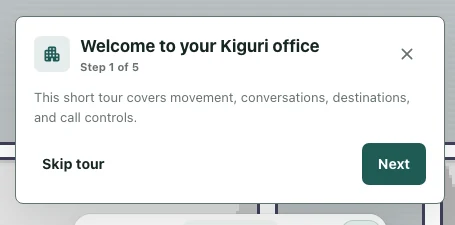
Open Settings → Office. Under Guidance, find Office tour and select Start tour. Settings closes and the in-game guide restarts. This does not create a workspace or reset the map.
3. Follow the movement and conversation steps
The guide explains arrow keys, WASD, touch movement, conversation, and map controls. Use any highlighted area to locate the relevant tool. On a small screen, the guide card may cover part of the space. Read the step, continue or close the guide, then try the control yourself.
4. Match the guide to your access
Map and media guidance helps you understand the current space. Editor guidance applies to users who can edit. Entering the public demo does not grant permission to modify an organization's office. Compare the guide with the menus actually available to you rather than assuming access to a missing tool.
5. Choose the right tour for your goal
Return to /demo's Product tour if you want the automatic introduction. Its scene selection and playback controls do not move your in-game character. If Start tour shows something different from what you expected, first check which tour you meant. If no guide appears, note the current address and the settings button you selected so the problem can be identified.