Open and close workspace visitor access deliberately
Identify the office and the intended visit
Decide which existing workspace should accept visitors and when that arrangement should end. Keep the visit’s purpose, host and fallback contact clear before changing access. Opening visitor policy does not invite a particular person or prepare the office’s activities for you.
After signing in, choose Open workspace on the home page, or Office access in its mobile menu, then My spaces. Find the intended office and choose Manage where your active owner or administrator membership allows it. Read the office name in its My spaces row and match its slug with Space admin before acting, especially if you manage several spaces.
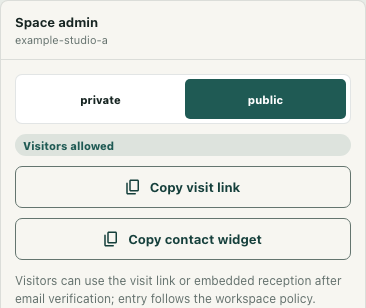
The screenshot uses fictional Example studio in a local demonstration of the original interface. It illustrates the public setting without recording a live policy change, a shared link or a visitor arrival.
Open visitor access deliberately
In Space admin, read the current private or public selection and its badge. Members only describes the private setting; Visitors allowed describes public. Agree that this office should accept public visits before selecting public. Do not change an unfamiliar workspace merely because you need a link for an event.
If a change is needed, choose public once and wait. During the request, the policy controls can be disabled. After the update responds, the panel can temporarily show Loading account while it retrieves workspace context again. That loading view is not confirmation of the new policy.
When the panel returns, inspect the intended workspace’s current selection and badge alongside any messages. An older success message can remain after a later update fails. An accepted update can also be followed by a failed reload, leaving an old badge beside a new success message and an error. Use Refresh to retrieve context again and reconcile the result before announcing that public visitor access is open; a failed refresh leaves the uncertainty unresolved.
Check the visit destination separately
Once the intended public policy is confirmed, use Copy visit link and inspect the resulting address through your normal preparation process. It identifies the current application origin followed by /@ and the selected workspace slug. Check that destination against the office you intend to host, rather than recognizing only the Kiguri domain.
This is a workspace destination link, not a secret invitation token or a grant to a named person. Copying it does not save policy or prove admission. The copy button can remain available while a policy request is pending. If clipboard copying fails, the panel can display the link in a message instead; inspect that address without assuming it reached your clipboard.
Public policy still leaves separate requirements for an authenticated account, applicable visitor terms and availability. Existing revoked access can also prevent a visit. Confirm an actual arrival separately, along with the intended area and any required conversation route. A public badge does not prove that reception, a portal or media works.
Close the window and reconcile remaining visits
When the agreed visit window ends, return to the same office’s Space admin and select private. Wait through the response and context reload, then inspect the fresh private selection and Members only badge. Apply the same message and refresh checks if the result is uncertain rather than repeatedly toggling settings.
Coordinate with anyone still visiting through the agreed host process. Saving private does not guarantee immediate removal of connected guests or termination of their media. It also does not suspend ordinary members or cancel invitations. Finish with a confirmed current policy, the correct office identity and an explicit plan for any remaining visitors.