Pause and restore a workspace membership deliberately
Identify the office and existing member
Open management for the intended office in My spaces, where your active owner or admin membership permits it. In Space admin, use Search members to find the existing member. Read the name or email, role, and current status together before preparing an action. Pending member invitations is a separate list; canceling an invitation is not suspending an existing member.
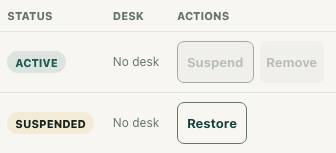
The worked example uses an invented Example Alex with an ordinary MEMBER role in Example studio. The native interface uses synthetic records and in-memory changes. No real member was suspended or restored. Its mobile image shows the right side of the table, not evidence identifying a particular person.
Confirm the intended pause
An ACTIVE row offers Suspend and Remove. Agree on the intended membership change through your team's normal process before using either control. Read the confirmation, which names the person and workspace. Canceling that confirmation leaves the status action unsubmitted.
Do not interpret an enabled button as permission to change every row. Server rules require an authorized manager and protect self-deactivation, privileged roles, and the last active owner. An administrator can encounter a protected-role rejection even when a status control is visible. Read that result rather than trying another label to bypass it.
For the fictional exercise, choose Suspend for Example Alex and confirm only in the isolated practice state. Remove is another inactive status in this workflow; it does not mean deleting the person's account. Keep the action scoped to the selected workspace.
Inspect the refreshed result and any error
After an accepted update, the panel requests the member list again. Check the intended row's returned status and inspect any error. A failed update can leave the row ACTIVE with an error, and an older success message can remain visible. Read messages in the context of the current operation. Preserve uncertainty instead of announcing that the pause succeeded.
There is another important combination: the update can return before the subsequent refresh fails. The panel can then show a success message alongside a refresh error while the displayed row still says ACTIVE. That combination does not establish that the old row is current. Resolve the refresh problem and retrieve the state again before treating the display as confirmation; avoid repeatedly submitting changes merely to make the messages agree.
On a narrow screen, the table scrolls horizontally. Inspect identity first, keep track of that same row, then move across to status and actions. A right-side crop alone cannot confirm whose access you are changing.
Understand what deactivation ends
The implemented ACTIVE-to-inactive path releases desk ownership, closes active presence sessions, ends active task declarations, and cancels active focus sessions for that member in the workspace. The member record and its role remain. This path does not establish that desk decorations were cleared.
These consequences make pausing more substantial than changing a visible badge. Arrange any necessary work handoff separately. Realtime disconnection and billing synchronization are best-effort follow-up operations; this guide does not guarantee socket termination or a billing outcome. A status response is not proof that media stopped, another organization changed, or every account session ended.
Restore membership without assuming resources return
An inactive row offers Restore. When the agreed return is appropriate, confirm the selected office and person again, use the action, and inspect the refreshed ACTIVE status and any error separately.
Restoration clears the deactivation state but does not reclaim the former desk or recreate the ended presence, task declaration, or focus session. In the fictional native example, the restored row is ACTIVE and still shows No desk. Re-establish any needed resources through their own available workflows. Finish with a verified membership state and an explicit list of remaining arrangements, rather than assuming that a restored row proves office admission or a fully restored working session.