Use doors and portals: check access and confirm the new map
Doors and portals help explain how spaces connect. A door-shaped image does not guarantee access to every destination. Minimap fast travel and using the actual portal are separate steps, so check your location, access message, and map name.
1. Locate the connection
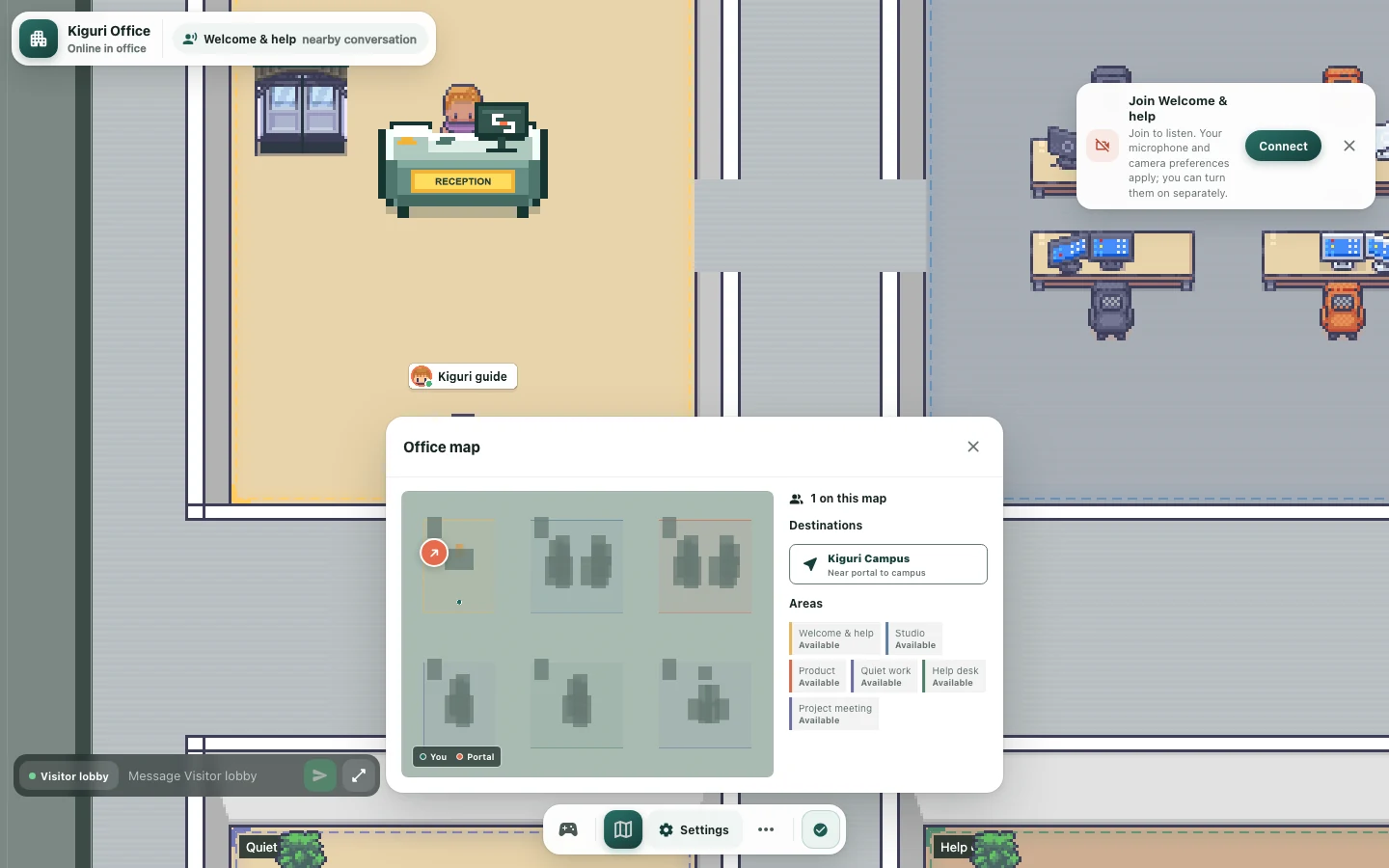
Enter /demo?play=1 and find the door or portal you want to use. Open the minimap to check its name and relative position. Distinguish a decorative door image from a portal with an actual connection.
2. Move near the portal
Read an available destination under Destinations and select it. Fast travel moves you to a location or portal vicinity on the current map. Available portal markers on the minimap can also help you approach. Selecting the map button does not itself mean you have entered another map. Disabled items are unavailable under current conditions.
3. Use the portal and read access messages
Close the minimap and move toward the actual door or portal. Check any access notice: members only indicates member access, while security approval required indicates an approval condition. Public arrival and member areas can have different rules. In an organization's office, roles and administrator settings affect access.
4. Confirm arrival
After using the portal, check that the map name and surroundings have changed. Arrival uses an accessible safe position, so your character need not overlap the exact center of the door image. Walk into an open passage and reopen the minimap. Changing maps does not itself mean your microphone and camera have turned on.
5. Identify where movement stopped
If you remain on the same map, check whether you only fast-traveled near the portal or actually used it. Then inspect destination availability, connection state, and access notices. Ask the administrator about permission restrictions. When reporting a problem, include the starting map, destination, portal notice, and resulting map name.