Post a workspace notice with a deliberate audience
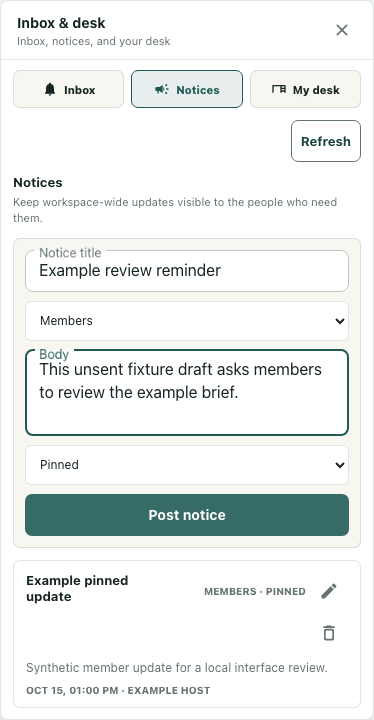
A workspace notice keeps a short update in a shared place without turning it into a chat exchange. Posting and managing notices require an eligible workspace OWNER or ADMIN at the server. If those controls are unavailable, ask the workspace owner about access. The illustrated manager form contains an unsent local draft; the notice beneath it is also a synthetic example.
Open Notices and prepare the update
Open Inbox & desk where member tools are available, then select Notices. A manager sees Notice title and Body with the posting controls. A member view can display available notices without showing the management form. Seeing a form in an illustration does not establish the current account's authority.
For a fictional review reminder, write a title that identifies the brief and a body explaining the action and where the authoritative information lives. Keep the notice focused enough to read in the list. Do not include confidential details merely because an update would be convenient for the group. Check whether the intended audience is allowed to read the linked material too.
Choose visibility and ordering separately
Read Notice visibility before posting. Members and Public are workspace audience choices. Public makes the notice eligible for the workspace's public visibility scope; it does not establish email delivery or publication to the whole internet. A link in the body retains its own access requirements.
Choose Normal or Pinned according to the update's importance. Pinned changes list ordering, placing pinned entries ahead of ordinary entries. It does not prove that every person has received or acknowledged the update. In the example, a Members/Pinned reminder can keep a required review prominent without describing it as an invitation or an automatic notification.
Post once, then inspect the current list
Select Post notice when the text and audience are ready. Wait for the request to finish and read any error. The form clears and the panel refreshes after a successful creation. Use Refresh when checking the current summary and compare the title, body, visibility label, and pinned marker with your intended update.
This panel uses a summary limited to five notices, with audience and expiration rules applied. An older or lower-priority entry may not appear in that subset. If a title is missing, do not immediately post the same notice again. Check the result, current audience and workspace context, and ask the responsible manager to investigate before creating duplicates.
Edit an existing notice deliberately
Use the entry's Edit notice action to load its fields. Review the existing audience as well as the wording; an edit can change who may see the update. Select Save notice for the intended change, or Cancel edit to leave the draft editing flow. Inspect the refreshed result afterward.
Deletion has a separate confirmation step. Use it when removal is intended rather than as a way to complete an update. The finish check is a current, appropriately scoped notice with the intended wording and ordering, plus any unresolved visibility or save problem clearly identified.