Prepare website contact launcher text and inspect its snippet
Website embed lets a workspace manager prepare launcher wording and examine generated HTML. Start with a workspace already permitted to accept public visitors; this guide does not change its access. The useful result is a checked text-and-code draft, not a claim that a website installation or reception service works.
Confirm the workspace and the available controls
In your workspace management view, select the intended workspace and find Website embed. Its controls depend on an active owner or administrator membership. A visitor or ordinary member should not assume the manager form is available. If the section is absent, check the selected workspace and your existing access through the normal process.
The public-access badge says Ready to publish. That describes the workspace's access setting, not a successful visitor conversation. If it says Visitor access is private, stop this preparation path and ask the responsible owner about the intended use; do not change access merely to follow this guide.
Write three distinct pieces of text
Launcher label is the short button wording, with a 40-character limit. Panel title names the opened panel, with an 80-character limit. Welcome message introduces the contact context, with a 300-character limit. Give each field its own purpose rather than repeating the same sentence three times.
For example, use Ask about the workshop as a label and Workshop enquiries as a title. Keep the greeting specific about the subject people can ask about. Avoid promising instant replies, a completed booking, or a particular response channel that has not been established separately.
Examine the unsaved generated HTML
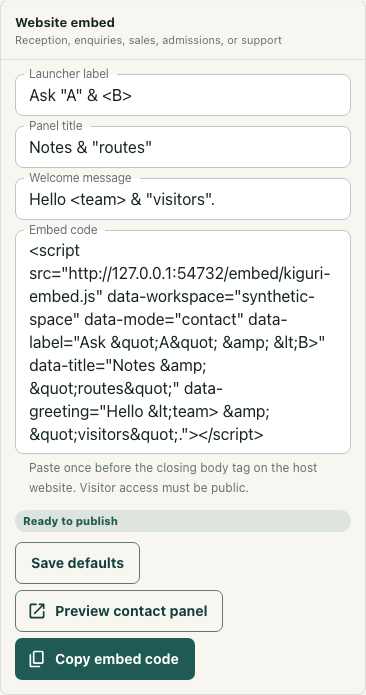
The readonly Embed code changes as you edit these fields. It uses the current Kiguri application origin for the script address and identifies the selected workspace through data-workspace. It also includes data-mode=contact and data-label, data-title, and data-greeting values.
You can inspect this code without pressing Save defaults. Saving is a separate workspace-settings action; changing the visible text does not prove those defaults were persisted. Check the workspace identity and wording before saving those defaults.
Check copied text and the preview boundary
Copy embed code offers the generated text to your browser's clipboard. Inspect the resulting text rather than assuming the action succeeded. Quotes and special characters may appear as HTML entities in attributes; they should still represent your intended wording. A clipboard failure can leave the snippet displayed in a message instead.
Preview contact panel provides a separate URL with the workspace slug and title/greeting parameters. Inspect that destination before testing its visitor-facing behavior. A preview link, reachable script file, or generated snippet does not prove installation, email verification, message routing, or operational reception.
Keep the example separate from publishable code
The illustrated form is the actual interface in an isolated fixture. Its loopback script origin and synthetic-space workspace are test values, not installation-ready code. Use code generated for your own actual Kiguri workspace; do not copy the example image's address or workspace identifier.
Finish by confirming the intended workspace, three text fields, generated attributes, and whether defaults remain unsaved. Leave website installation and visitor-function verification to separate setup and functional checks. Preparing the snippet establishes its wording and shape, not that somebody can receive or answer a visitor request.