Prepare an actionable problem report before sending
Open the report from the office menu
When the office toolbar is available, open More office actions and choose Report a problem. This opens the report dialog. Prepare the account of the problem before deciding whether to send it, particularly when the screen includes information belonging to someone else.
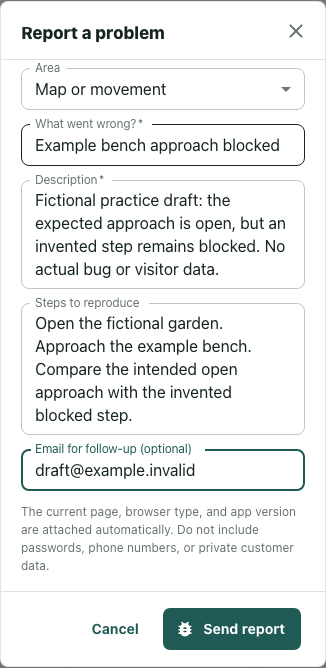
The illustrated form is an unsent, fictional practice example in an isolated interface. Its bench description does not demonstrate a real movement defect. The exercise ends with a reviewed draft; no report was transmitted.
Choose an area and describe the difference
Use Area to select the closest category, such as Map or movement, Audio or video, Sign in or access, or Interface. Leave Other when none fits. The category identifies the subject; it does not establish the cause.
Write a short, specific title in What went wrong? The fictional example uses “Example bench approach blocked.” In Description, explain the intended action, what you expected to see, and what appeared instead. A useful practice description says that the approach should remain open, while an invented step remains blocked. It also labels the account as fictional.
For a real report, separate observation from inference. “I stopped moving at this approach” describes an observation. “The furniture collision rules are broken” assigns a cause that you may not have established. Include the relevant location without copying private conversations or customer details into the description.
Make the steps readable without your explanation
Steps to reproduce is optional, but a short sequence can help another person understand the starting point. The practice example opens a fictional garden, approaches the example bench, and compares the intended open approach with the invented blocked step. Add the action that exposes the difference rather than ending at “open the office.”
Read the sequence back against Description. If it starts in another location, requires an unexplained selection, or changes the expected outcome, correct the mismatch. Keep uncertainty explicit when you cannot repeat the behavior. Email for follow-up is optional; inspect any prefilled value before choosing whether to include it.
The form requires What went wrong? and Description. Its validation also requires at least three characters in the trimmed title and ten in the trimmed description. Meeting those minimums does not make the account reproducible. The practical finish check is whether another reader can identify the starting state, action, expected result, and observed difference.
Review the automatically included context
The technical note explains that the current page, browser type, and app version are included automatically. The page URL preparation removes its query string and fragment, while retaining the path. This does not remove sensitive information you type into the form or information embedded in that path.
Follow the note’s instruction to exclude passwords, phone numbers, and private customer data. Review the title, description, steps, email, and relevant page context together. This workflow covers the visible text fields; the example supplies no screenshot attachment or recording.
Finish before closing the draft
Reopening the dialog clears the title, description, steps, validation message, and category selection. Email returns to the supplied initial value. A change to that initial email while the dialog is open also resets the complete form, so check all fields again if they unexpectedly become blank.
Use Cancel or Close when you want to leave without submitting. Keep any preparation you need elsewhere before closing; this dialog is not a retained draft store. A complete unsent form is the result of this exercise. Preparation and minimum-length checks do not establish delivery, diagnosis, a fix, or a promised reply.