Read a meeting reminder before choosing its action
Read the reminder as a prompt
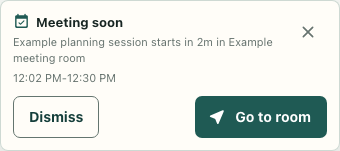
A planning session is approaching while you work in the office. The reminder gives you a title, a short timing label, a displayed time range and an action. Read those details before choosing the action, especially if several sessions have similar names. The example here is fictional: a planning session starts two minutes after a fixed local-fixture clock.
The accompanying image uses the actual reminder component and styles with that synthetic event. Its buttons invoke local test callbacks. No room movement, calendar connection or provider synchronization occurs in the example. This lets us inspect what the reminder says without claiming that its destination was reached.
Check the timing boundary
An eligible event can produce Meeting soon with a starts-in label, or Meeting starting when the start has arrived. The displayed range is formatted in the browser's local time context. If a teammate reads a different time from another browser, compare timezone and locale before concluding that the event itself changed.
The current reminder logic uses the event's reminder-minute value, defaulting to five minutes when absent and clamping negative values to zero. A five-minute event at the boundary is eligible; one just beyond it is not. Cancelled events and events that have ended are excluded.
The starting window also has a limit: an event fifty-nine seconds past its start can still be eligible, while one exactly sixty seconds past its start is excluded. These checks describe the current selection logic, not a promise that reminders will remain visible throughout every meeting. When several eligible events exist, the earliest start is selected.
Inspect the room association
A reminder with an associated area offers Go to room and can include the area's name. Without an associated area, it offers View schedule. That difference gives you a practical first check: does the room label correspond to the place you expected?
Area matching searches text from the event's meeting-room ID, location, title and description against area IDs or names. It uses substring matching rather than requiring an exact room-ID match. A room name mentioned in a title can therefore create an association. In the fictional checks, a room-ID match and a title containing the room name both select the area; an unrelated event falls back to View schedule.
If the association looks surprising, inspect the schedule details before relying on the room action. The presence of Go to room is not independent proof that the event's location was specified correctly.
Treat each action according to its result
Dismiss adds this event's reminder ID to the application's current dismissed-reminder state. It does not delete the calendar event or establish a persistent snooze. View schedule requests the schedule interface to open and dismisses the reminder.
Go to room requests movement through the game interface. The application dismisses that reminder only when the movement method reports success. Our isolated button check verifies the callback choice, while actual room travel remains a separate outcome to observe in the office.
Choose the action that fits the information you have: use the schedule to resolve unclear details, or use the room action when the association is appropriate. Afterwards, confirm the resulting view or destination. A reminder's wording helps orient you, but the action's actual result completes the check.