Read workspace invitation state before assuming someone joined
Add member does not always produce a pending invitation. For an existing account, the implemented service can activate membership immediately; for a new email, it follows an invitation path. Understand that difference before acting. A pending row, a sent-looking date, and a successful membership change describe different states and should not be treated as interchangeable proof.
Open the selected workspace's management view
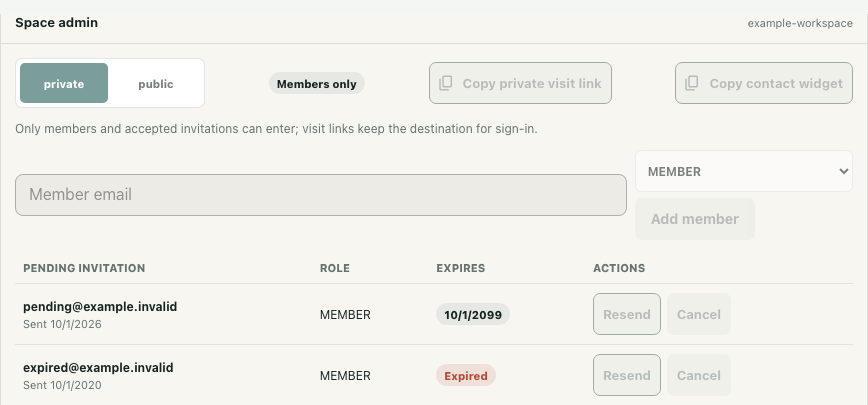
Where you have management access, open Manage workspace and select the intended office in My spaces. The Space admin section contains Member email, New member role, and Add member. Confirm the selected workspace before preparing a change, particularly when you manage more than one office.
Workspace owners and admins can use member-management routes. An owner can add owner, admin, member, or guest roles; an admin can add member or guest roles, and cannot add another owner or admin. Available role options should be read in your current context. A general onboarding invitation does not grant the sender these management powers.
Check the consequence before Add member
Confirm the intended email, role, and agreed membership change before submitting. The service checks whether an account already exists for the email. If it does, the invitation routine delegates to member addition. That path can activate membership without waiting for the recipient to accept a new invitation.
When the email does not identify an existing account, the service follows the invitation path. A newly created invitation receives a seven-day expiry in the source. This distinction matters if you expected a harmless pending state before access changes. The example screenshot has a blank unsent form with actions disabled; no member was added and no invitation was sent to obtain it.
Read the pending invitation row
Pending member invitations shows the email, assigned role, expiry, and actions. Compare the row with the person and role you intended. The synthetic native example includes one future expiry and one row labeled Expired. These are fixture states illustrating the interface, not actual recipients or delivery results. On narrow screens, scroll within the invitation table to inspect the expiry and action columns.
A row in this list is not evidence that someone read an email or joined successfully. Check membership separately when that is the question. Similarly, absence from the pending list does not by itself explain whether the person was added immediately, accepted earlier, or has another unresolved state.
Handle expiry and follow-up without guessing
The panel offers Resend and Cancel for pending invitations where management actions are enabled. Decide which action is appropriate through your team's normal membership process rather than repeating requests automatically. An expired row needs attention; the acceptance lookup excludes invitations whose expiry has passed, but the guide does not demonstrate a live acceptance attempt.
The screenshots and source checks establish the controls, role limits, and branching behavior. They do not prove email delivery, successful resend, token acceptance, or a production account's current membership. Finish by checking the selected workspace, the intended role, and whether the result is actual membership or a still-pending invitation. Preserve an uncertain result as uncertain instead of announcing that the person has joined.