Recover Visitor Access After Signing In to Kiguri
Separate the account from the destination
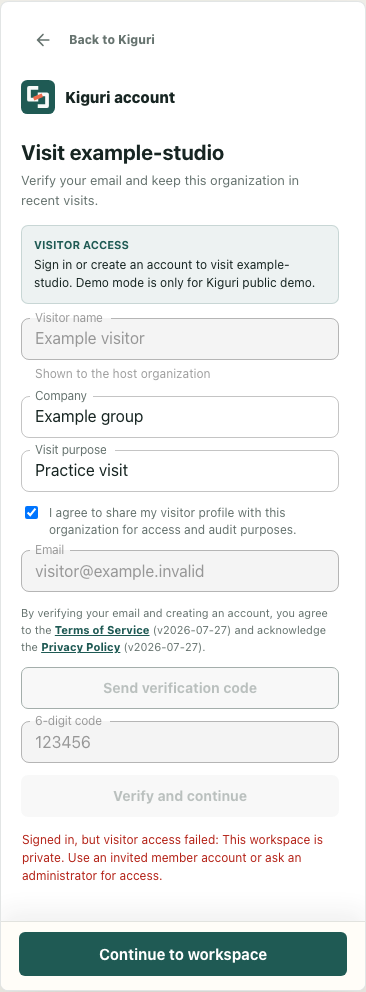
You have verified your email, but the office you intended to visit has not opened. Treat that as two separate questions: whether the account step completed, and whether this particular workspace allows your visit. Sending another verification code does not resolve a private workspace or revoked visitor access.
For this walkthrough, Example visitor is trying to reach the fictional example-studio workspace. The interface examples use isolated local components with fictional responses; they do not show a real sign-in, access grant or office arrival. Your useful outcome is a confirmed destination, an understood access result and a clear next action with the host.
Read the remaining visit context
On the visitor sign-in screen, check the workspace named above the form and read the complete error. A message beginning “Signed in, but visitor access failed” can appear after verification succeeds and visitor admission fails. The account fields can become disabled while Continue to workspace remains available. A disabled code button or a remembered sign-in flag alone does not prove that a server session or visitor membership is currently valid.
Keep the visitor name accurate and review the company, visit purpose and profile-sharing consent. Consent is required for the visit steps; it is separate from the host allowing access. If the destination is wrong or the explanation is unclear, stop before another attempt. Keep the workspace name and error wording so the host can investigate the correct visit.
Resolve eligibility with the actual host
A private-workspace error calls for an invited member account or administrator help. A revoked-access message calls for a new invitation from the workspace administrator. Ask the person hosting your visit which access route they intend you to use and confirm the exact workspace. Repeating verification or guessing other workspace names does not settle that question.
Once the host has clarified or corrected eligibility, a still-pending visitor screen can use Continue to workspace to retry admission without requesting another code. Keep the required consent selected. If the same refusal returns, preserve it and return to the host rather than entering a retry loop. A changed error is also information to review, not evidence that entry succeeded.
Continue from workspace options when needed
After a successful retry, Continue to workspace takes you to workspace options; it does not itself mean you have reached the game. If you are already signed in on the Operations page, find Visitor entry. If it is closed, use Visit another organization to open it. Despite the field label “Organization slug or visit link,” the destination is a workspace slug. Ask the host for the confirmed plain slug, such as example-studio, and enter that value. Pasting a full address containing /@ can leave an unsuitable value in this form.
Review the visitor details and consent, then use Visit workspace once. Read any returned error before proceeding. If the account context reloads successfully, a guest visit may appear under Recent visits rather than My spaces. An empty My spaces list therefore does not settle whether visitor access exists.
Confirm arrival before starting work
Check that the intended office actually opens and that you can orient yourself there before telling the host you have arrived. An access-opened message or a change of page is a different checkpoint from entering the office. If success wording appears alongside an account-loading error, avoid immediately submitting the visit again; confirm the current page and ask the host which stage remains unresolved.
Finish with one clear message to the host: you reached the named office, or you are stopped at a specific account, eligibility or entry stage with the displayed error. That gives both people a shared starting point without confusing email verification with permission to join.