Repair an overlapping area before saving the map
An area edit can be rejected because another area occupies part of the same rectangle. The helpful next step is to identify the blocking area and inspect its geometry. Changing furniture, voice settings, or colors can leave that conflict untouched. The illustrated controls use synthetic areas in an isolated editor; no real map was changed or saved.
Read the rejection before making another edit
When the editor reports Area overlap rejected, read the named blocking area. The rejection path selects that area and reveals its relevant Areas or Events layer. Confirm the selection instead of assuming the rectangle you just tried to draw is still the active one.
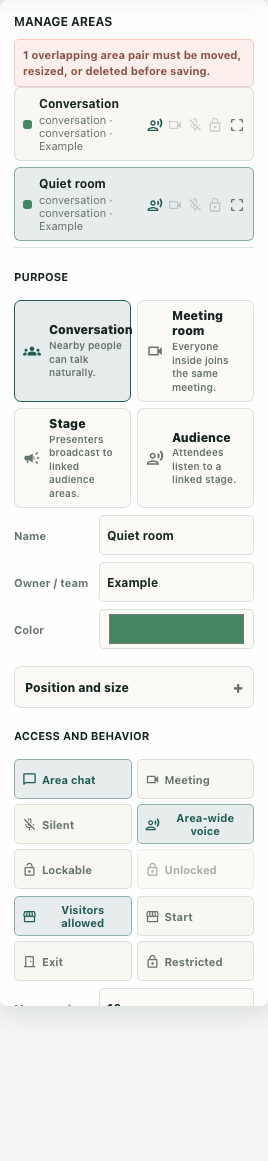
Open the appropriate layer and its Manage areas or Manage event areas control. Review the names in the list. If an overlapping pair is present, the management panel reports that the areas must be moved, resized, or deleted before saving. Keep the named conflict in your notes so the next change has a specific purpose.
Inspect position and size
Select the area you intend to adjust and open Position and size. Read X, Y, Width, and Height together. A rectangle's position alone does not show where its far edge ends. Confirm which area should retain its current footprint before moving either boundary.
For the synthetic example, Conversation starts at X 200 and has width 240, so its right edge is 440. Quiet room initially starts at X 350 with width 240. Their vertical ranges also intersect. The shared horizontal portion explains the conflict; the area's name and visual color do not resolve it.
Make one limited geometry correction
In the example, changing Quiet room's X to 440 places its left edge at Conversation's right edge. Under the source's overlap rule, touching at that edge is different from occupying a shared interior region. The native management warning disappears for these synthetic rectangles.
Keep the area's purpose and behavior settings intact while checking this correction. If you resize instead, inspect the intended usable footprint afterward. A number that removes the overlap can still make the room too small for its planned activity. Actual movement and interaction checks remain necessary in the working map.
Separate local warnings from server validation
The Save workflow can ask for confirmation when validation warnings exist. That prompt does not override the server's area-overlap check. The actual validator rejects intersecting same-map areas, areas recorded under a different map, and duplicate area identifiers. Its isolated checks accepted the edge-touching example without writing to a database.
If saving fails in ordinary use, retain the exact error and current geometry. An unsaved local arrangement remains a different state from an accepted server layout. Avoid interpreting a changed panel or disappearing warning as proof that the map was persisted.
Check the whole conflict after the correction
Revisit the area list and inspect every relevant same-map pair, not only the original two names. Moving a rectangle away from one neighbor can bring it into another. Confirm that the intended area is selected and the corrected geometry still supports its purpose.
Keep a short conflict record with the original bounds, blocking pair, changed field, resulting warning, and actual save outcome when available. The finish is a specific geometry repair with its validation state visible. The isolated example establishes native configuration and source-validation behavior; it does not establish a live save or a tested walking route.