Save and reuse an edited assembly from the workspace catalog
Choose the assembly and the workspace
Use Save as asset when you want to reuse one edited assembly through the workspace catalog. This differs from Copy, which keeps a live source reference inside the editor, and from saving or importing a whole map layout. The asset-pack update requires an OWNER or ADMIN role. A visible button alone does not establish that permission, and the resulting catalog resource belongs to the workspace rather than a private personal preset.
For a fictional example, suppose you arrange two ordinary static counter pieces and want to reuse that arrangement later. In the desktop editor, select the intended whole group and inspect its pieces before saving. Selecting only a different nearby group would capture that group instead. This workflow excludes wall decoration; start with an ordinary static assembly rather than assuming a portal, receptionist or chair will retain every functional setting.
Give the reusable entry a clear identity
Under Selected item, choose Save as asset and enter a descriptive name such as Practice counter arrangement. Canceling the prompt stops the operation. If extraction cannot produce an asset, the editor reports Unable to save selected object as asset.
The extraction takes the current pieces and their positions relative to the assembly bounds. It produces catalog data rather than another live Copy reference. Later movement of the original source is therefore different from editing this extracted snapshot. That distinction does not guarantee universal preservation of transformations or special-object metadata: additional rendering fields depend on the asset’s available metadata.
Keep a short result note with the workspace, chosen label and intended assembly. The label is useful for lookup, but it is not a unique replacement key. Repeating the operation can create another asset identity with the same name.
Find the entry before preparing placement
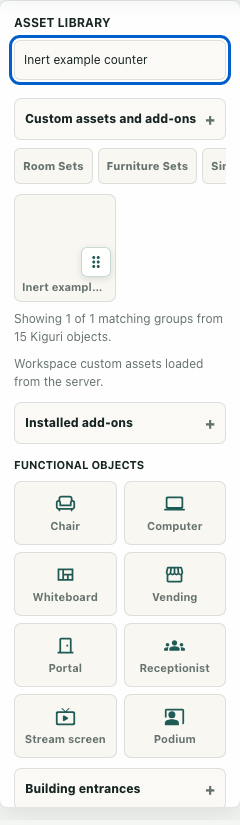
The editor updates a workspace pack and then reloads the catalog. After a successful sequence, it switches to Custom and reports Saved followed by your label. In Asset library, use Search asset library to find the intended entry. Check the workspace and distinguish similarly named results before choosing one.
Choosing a catalog entry prepares placement after its texture registration succeeds. It does not establish that another object has appeared on the map. A locked layer or an unavailable texture can prevent the placement tool from starting. Confirm the intended location and inspect the actual placed result through your normal editor workflow before separately saving the map. Saving a reusable resource and saving map contents are different outcomes.
Resolve uncertain saves before retrying
An upsert failure and a catalog reload failure need different checks. If the pack update fails, the subsequent reload and success message are not reached. If the update succeeds but the reload fails, the resource may already exist even though Saved never appears. The current callback does not provide a friendly catch for these failures; controlled fixture failures surfaced unhandled rejections. Do not assume an automatic rollback.
Stop repeated clicks, restore a working catalog load and inspect the intended workspace’s entries before attempting another save. Matching names alone do not prove identical assets, and another save can introduce a duplicate label with a new identity. Record the uncertain outcome so another editor does not mistake it for confirmed absence.
Keep the verification boundary clear
The guide image shows the original native library with an inert example loaded from a memory-only service. Its blank thumbnail and loaded-from-server wording do not prove real rendering or persistence. The library was hidden at a 390-pixel test viewport, so these instructions concern the desktop editor. Finish your own check with the intended entry, an inspected placement and a separate accepted map save; do not infer seating, collision or linked-object behavior from catalog lookup alone.