Sketch together on a shared whiteboard
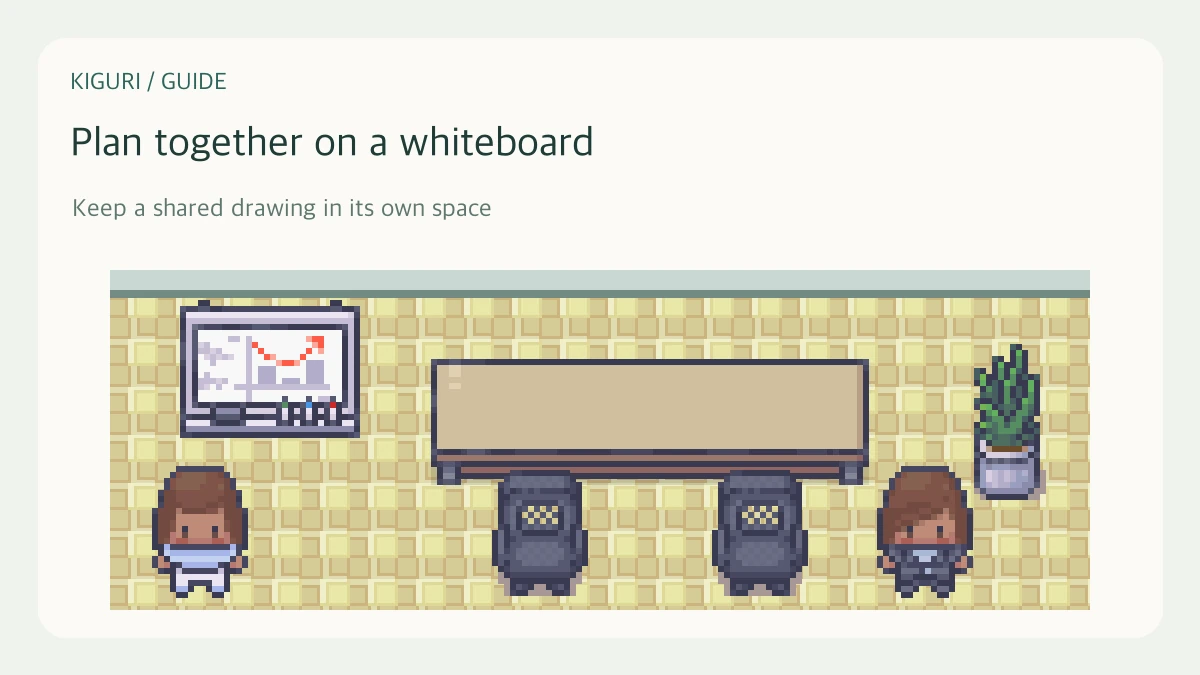
A whiteboard is useful for a quick diagram that everyone in the same board session can discuss. Treat it as a shared surface, not a private scratchpad. Start with a small sketch and check which board you opened before making larger changes.
Open the actual whiteboard
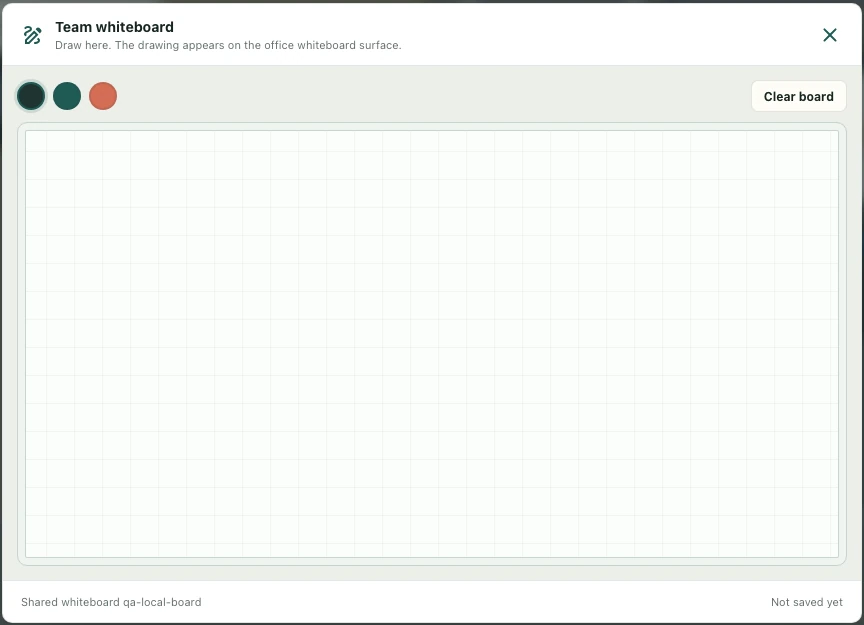
Approach an interactive whiteboard in an office you can access and use its interaction control. The Team whiteboard window shows a drawing canvas and identifies the shared board in its footer. An image that looks like a board is not enough: the object needs the whiteboard function. If the interaction is unavailable, check the object and workspace access rather than assuming every decorative board is interactive.
Draw a short example first
Choose one of the labeled pen colors and draw on the canvas with a pointer or touch input. For example, sketch two boxes and the route between them before attempting a detailed room plan. The drawing also appears on the office whiteboard surface. With another participant, compare the same board before relying on it for a discussion; a local drawing alone is not proof that everyone received the update.
Read board identity and updates
The footer shows the shared whiteboard identifier and update information when available. Use these to distinguish nearby boards and coordinate with the people looking at yours. Keep sensitive customer details out of a board shared with participants whose access you have not checked.
Clear deliberately, then close
Clear board asks, “Clear the whiteboard for everyone?” Confirm only when the group is ready to remove the drawing. Closing the window and clearing the board are different actions. Do not assume the interface provides a private erase, a downloadable archive, or an unlimited version history unless those controls are actually available.