Use the transparent chat panel without losing sight of the office
The transparent chat panel at the bottom lets you read recent messages while keeping the office in view. Use quick chat for short replies and expand it when you need more history. Check the conversation and delivery state in the panel rather than relying only on a character's label or message bubble.
1. Find the quick input
Enter /demo?play=1 and look at the bottom of the screen. The input's Message label reflects the selected channel. Read that channel before typing: different channels and direct conversations can have different recipients.
2. Send a short message
Type your message and select the Send icon. Text in the input is not yet a sent message. Check the recent messages area for the result. Use a harmless test message rather than personal contact details in the public demo.
3. Expand chat to read more
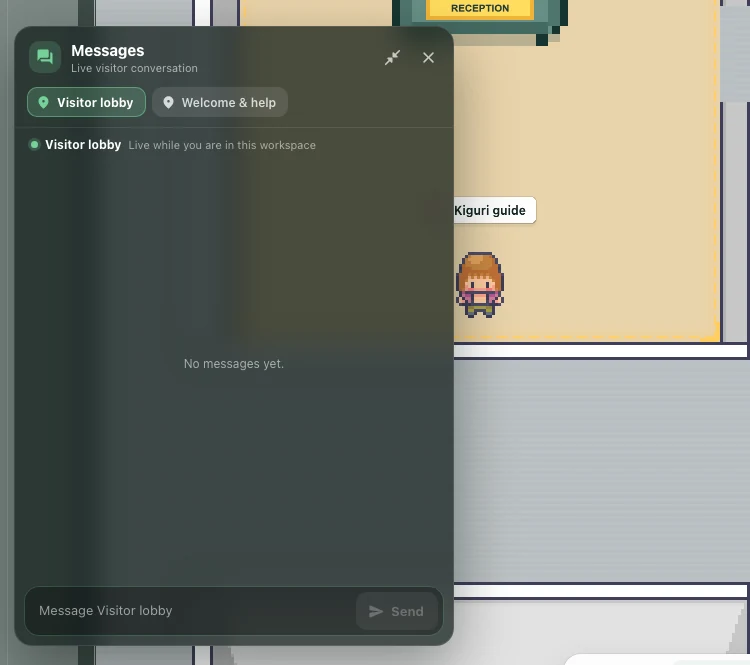
Select Expand chat, labeled Open full chat, when you need earlier messages. The expanded panel shows channel tabs and conversation history. Choose the conversation before replying. Available direct conversations depend on your account and the conversation list provided to it.
4. Return to the office view
Collapse chat returns from the expanded panel to the office view; it is different from Close chat. On mobile, expanded chat can hide the movement pad. Collapse or close it before moving. If the input still has focus, movement keys may enter text instead.
5. Check connection before retrying
An Offline notice means you should not assume your draft was delivered. Expanded chat explains that messages remain in your draft until you reconnect. After reconnecting, check the channel, draft, and message history before sending again. This helps avoid duplicate messages. Use the history actually available on screen rather than assuming access to every conversation.