Read your leave request state before treating it as approved
People & leave separates entering a request from having it approved. In a signed-in workspace where these tools are available, open Calendar and select People & leave. Check the actual request status before relying on the proposed absence. The form records a product workflow; it does not define your organization's leave policy or entitlement.
Fill the member request form
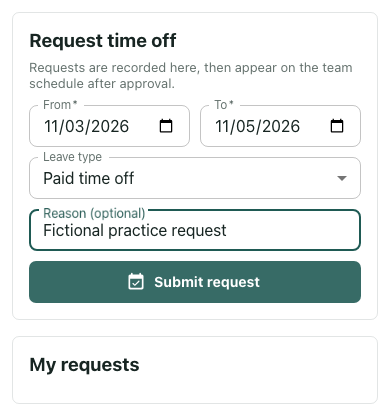
Request time off has required From and To date fields. Choose a leave type from Paid time off, Sick leave, Unpaid leave, or Other. Reason is optional. Keep any explanation appropriate for the workspace rather than adding private details solely because a text field is available.
For an illustrative request, enter November 3 through November 5. Filling these fields does not submit the request. The example form uses fictional dates and a synthetic member state; it is an unsent draft until Submit request is used.
Check how the date range is counted
The service counts inclusive UTC calendar dates. November 3 through November 5 is three days; the same UTC calendar date counts as one. This is not a business-day calendar and does not automatically exclude weekends or holidays. Do not substitute that calculation for an organization's policy.
The server rejects invalid ranges, distinct end dates before start dates, and ranges over 366 days. It also checks overlap with your existing PENDING or APPROVED requests. Inspect dates and existing requests when an error appears instead of assuming that a failed submission is an approval problem.
Submit and look for the recorded state
Select Submit request after checking the fields. A successful submission records a PENDING request; it does not immediately create an approved absence. Look at My requests for the dates and status that were returned. A filled form or button press alone is not sufficient confirmation.
An available balance, when configured, can prevent submission if the remaining amount is insufficient. A supplied reason must contain at least two characters under request validation; leaving the optional reason blank is different from supplying a one-character explanation. Read the error and correct the relevant field before retrying.
Distinguish review from your request
Approval and rejection belong to the workspace's authorized owner or administrator review path. The member request form does not grant that authority. While a row says PENDING, keep the approval question open through your organization's normal process. Do not interpret silence or the request's presence in the list as acceptance.
Approval rechecks any existing balance and records the approved days as used leave. It also creates a local calendar BLOCK for the request's inclusive dates. That local record is not proof of an external calendar update. For a multi-day request, the block's end boundary extends beyond the last included date.
Confirm the final row and relevant arrangements
Check whether the returned row says APPROVED or another state, and compare its dates with your intended request. The example image is an unsent form, not an approval or a balance change. If the state or dates remain uncertain, ask the appropriate reviewer rather than making another overlapping request.
Keep any necessary work coverage agreement separate from the product status. The finish check is a recorded decision with the intended dates, plus whatever confirmation your organization requires. No employment entitlement, external delivery, or coverage promise follows from the form alone.