Use a focus timer and check your presence afterward
A focus timer gives a work period a visible beginning and end. In a signed-in workspace where the Calendar tools are available, its Focus tab provides duration presets, an optional task choice, and a countdown. Treat the timer and the current presence indicator as related controls that still need checking after the session.
Choose a duration in the Focus tab
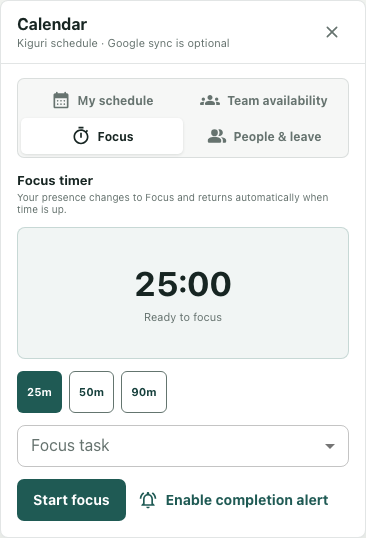
Open Calendar and select Focus. The idle view says Ready to focus and shows 25m, 50m, and 90m presets. Choose the period that fits your intended task rather than assuming a longer timer prevents interruptions. The preset selection changes the displayed duration before anything starts.
For example, choose 25m to review a short outline. The idle countdown is a planned duration, not evidence that a session is running. Look for Start focus to distinguish that state from an active session with End focus.
Link a task only when it is eligible
The Focus task selector also offers No task selected. A timer can run without a task link. If you choose a task, the server requires an active task that you created; a task merely assigned to you can fail that check. Visibility in the selector does not establish link eligibility.
If Start focus returns Task not found, inspect the selected task rather than repeatedly submitting the same choice. Select an eligible task or choose no task. Do not infer that the timer started while an error remains visible.
Check the active state
After a successful start, the view changes to a countdown and an End focus button. An eligible linked task can appear beneath the time. The start changes presence to Focus. Starting another accepted session replaces the earlier active session; it does not create two parallel timers.
Watch the displayed state instead of treating a button press as confirmation. A visible countdown is useful for your work period, but it does not measure concentration or establish whether colleagues are respecting it. Use your team's normal route for time-sensitive requests.
End the period and verify current presence
Use End focus when you finish early. The panel can show Focus session ended and return to Ready to focus. At expiry, the client timer and server cleanup can complete the session; the display does not guarantee the precise second when every indicator updates.
Ending a session or reaching its displayed expiry can reapply the presence saved when the session began, even if you changed your status during it. Check the current presence indicator afterward and set your intended status again if needed. Do not assume the result is always Available or that a manual status change will be preserved.
Keep completion alerts optional
Enable completion alert is a separate browser-permission action. Leave it off if you do not want desktop notifications; do not treat an absent notification as proof the timer is still active. The countdown and current controls provide the state to inspect.
The example image shows these actual controls in an isolated idle fixture, not a production focus run. For an ordinary work period, the practical finish check is that no active session remains and your current presence matches what you intend colleagues to see.