Create a task, complete it, and reopen it when needed
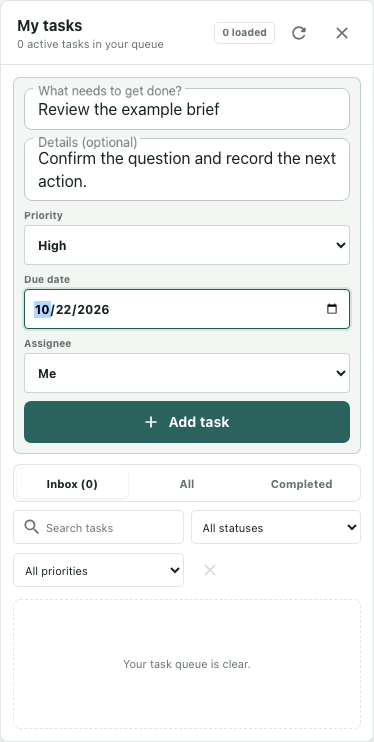
My tasks gives an eligible signed-in workspace member a place to manage items they created or were assigned. It is not an unrestricted team board. Open the tool in a workspace where member tools are available; the public visitor experience does not establish that access. The illustrated task is a synthetic local example, and the form screenshot shows an unsent draft.
Create an item with enough context
Open My tasks and fill What needs to get done? with a specific action. A fictional example is Review the example brief, with Details describing the question to check and where to record the answer. The task text must contain at least two characters. Choose Priority and an optional Due date if those help distinguish the work.
Read Assignee before selecting Add task. Me is the default; Unassigned leaves the item without an assignee. Available member choices depend on the current workspace, and the server requires an active workspace member. Assigning a name does not establish that the person has agreed to a deadline. Wait for the result and inspect any error before trying the same creation again.
Inspect the item and save deliberate edits
Select the task to open Task details. Check Task, Details, Status, Priority, Due date, and Assignee. Use Save changes after making an intended edit. A field containing new text is not by itself evidence that the server has accepted it.
Return with Back to my tasks when you need the list. Inbox shows active items, while All and Completed provide different views. Search tasks and the status or priority filters narrow the loaded results. Clear a filter when an expected item disappears. The service returns up to one hundred scoped items, so the visible list should not be described as every task in the organization.
Verify completion and reopening
Use Complete when the task is finished. Completion changes its status to Done and retains the record; it is different from Delete. The detail view offers Reopen for a completed item, which returns it to To do.
These buttons update the detail's local status before the request finishes. A visible Reopen button immediately after clicking Complete is therefore not enough to prove persistence. Read any error, return to the list, choose Completed or All as appropriate, and use Refresh tasks. Open the returned item and check its status again. After reopening, refresh an active or All view and confirm the task is To do. If the refreshed result disagrees, resolve the error rather than trusting the earlier local label.
Keep deletion separate from finishing work
Delete removes the task rather than marking it complete. Use it only when removal is the intended result. For ordinary finished work, keep the Done record so it remains available in the relevant view.
If a task cannot be found, check the workspace, view, filters, and whether you are its creator or assignee. A scoped result or failed update does not justify creating duplicates. The useful finish check is the item returned by a refreshed view with the intended status and details.