Use the text office directory to orient and choose a destination
Open the available text directory
When a visual map is difficult to interpret, use the named office information before guessing a route from shapes. Find Accessible directory in the available office helper controls. The desktop entry is in the More menu, while mobile helper quick actions also expose it. The application shows this panel in its logged-in office state outside the editor; the helper controls can be hidden behind other tools. Its availability is therefore part of your current interface context, rather than a promise that it appears everywhere.
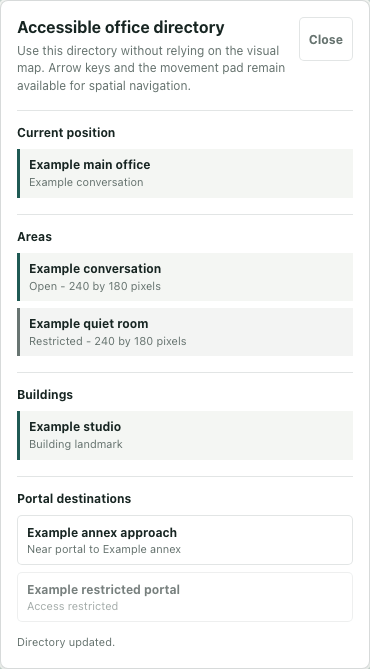
The worked example is fictional. Example main office contains a conversation area, a restricted quiet room, a studio building and two portal approaches. The interface screenshot uses the actual component with synthetic local data. No real office snapshot, participant position or movement was used.
Separate descriptions from destination buttons
Read Current position first. It names the room and current area supplied by the surrounding application. Use that context to interpret the lists below, instead of treating a familiar name as proof that you reached the intended place.
Areas lists names, access labels and dimensions. Buildings identifies named landmarks. These are descriptions; selecting a room name is not an implied travel action. Portal destinations is different: its entries are buttons with destination names and subtitles. Read the subtitle before choosing, and recognize a disabled entry as unavailable in the current snapshot.
In the example, Example annex approach is available, while Example restricted portal is disabled. This distinction helps you choose an actionable entry without confusing it with the quiet room description. Each of the three lists displays at most its first forty entries. An omitted name is not proof that the place does not exist, and the panel does not offer an exhaustive search of every office.
Use ordinary button focus deliberately
The panel receives focus when opened. In the isolated example, Tab reaches Close, then the available destination; Enter invokes that destination's local callback. Use the visible focused control and its label before activating it.
This is ordinary button navigation, not a custom arrow-key menu. Do not expect arrows to move a selection through the directory. The panel's description keeps spatial movement controls separate from its named entries. If your input is going somewhere unexpected, inspect focus rather than repeatedly pressing a movement key.
Choose Close or Escape when finished. Both call the surrounding close callback. The component does not guarantee that focus returns to a particular office control afterward; check where input goes before continuing.
Interpret refresh and action feedback separately
The directory reads a snapshot when opened and refreshes its lists on a one-second timer when the game and player are available. Without that context, it can remain at Directory is loading. Loading is not evidence of an empty office.
The current-position wording comes from separate room and area properties. A refreshed list does not itself recompute those properties. In the fictional check, changing the snapshot's area list updates Areas while Current position keeps its original host-supplied text. Existing action feedback also remains across that refresh.
A destination callback returning true produces Moved to followed by its name. That wording is optimistic feedback: the source initiates a fast-travel request within the snapshot's current map, toward the portal approach. It does not establish server delivery, completed movement or a portal crossing. A false result instead reports that the destination is unavailable from the current position.
Finish with the context you actually read, the selected entry and feedback, and any separately observed location result. Keep an uncertain arrival unresolved rather than converting a refreshed list or a confident status sentence into stronger evidence.