Read user status before connecting to a conversation
A participant's status helps you decide whether to start a conversation. Being in the office, being available, and being connected to a call are separate things. A visible character does not prove its microphone is on.
1. Read presence and availability
Enter /demo?play=1 and check participant information. Online in office describes presence in the space. Available indicates openness to talk; Focus time and Busy communicate a different availability. Away is also a selectable status, so it does not by itself prove a network disconnect.
2. Ask before interrupting
If someone is focusing or in a meeting, ask briefly in chat whether now is a good time. The participant count describes current connections, not new customers or signups. Your own test tabs and colleagues' test visits can appear as participants too.
3. Check the nearby conversation prompt
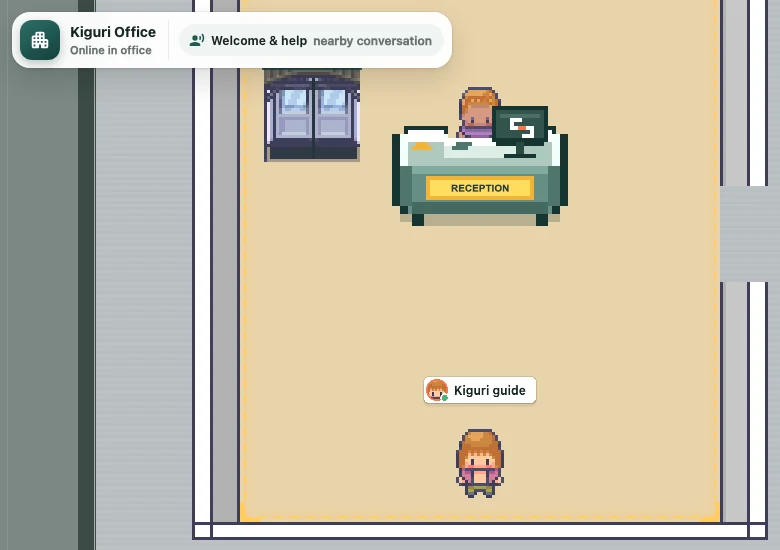
Moving near actual participants can produce a connection prompt. It names nearby people and explains that you can connect to talk. Check the names, then use Connect or Join call. Some conversations are tied to an area, so also check the current space name.
4. Verify connection and device state
After requesting a connection, watch Connecting... and any error message. Devices may remain off if your join preferences are off. Turn on the microphone when you are ready to speak and confirm its current state. If you cannot hear each other, check each participant's connection separately.
5. Keep office conversations separate from phone calls
Connecting to participants in the office is different from calling an external number. Do not assume number dialing or SMS is available in the demo. If the flow is unclear, identify the screen and button you used, then compare connection states with the other participant through chat.