Add a meeting to the Kiguri schedule
A Kiguri schedule can hold a meeting, reception follow-up, or busy block. Creating the internal entry and syncing it to an external calendar are different actions. Decide which result you need before adding attendee addresses.
Check the schedule form and context
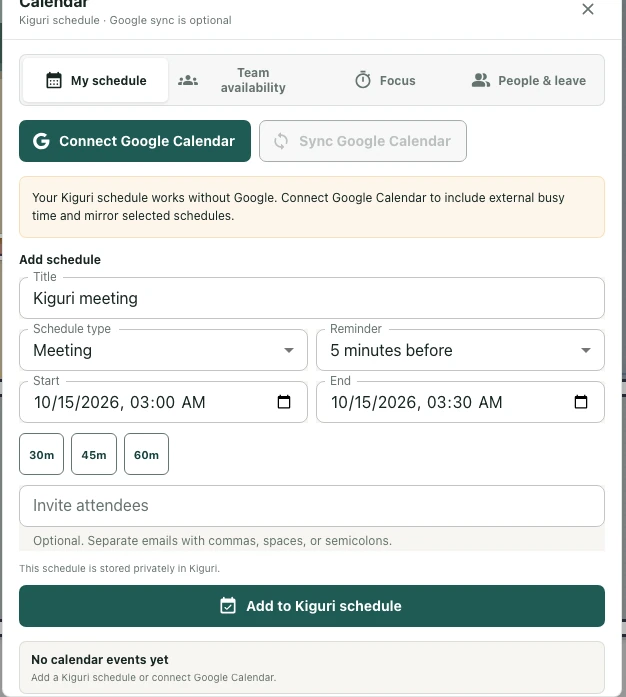
Open the calendar or schedule tool in a signed-in workspace where the form is available. Look for Add schedule. If you opened it in a meeting room, read the room context shown above the form. Do not assume a public demo exposes the same account-backed scheduling controls.
Enter a useful title and time
Choose a Schedule type: Meeting, Reception follow-up, or Busy block. Set Title, Start, and End. Use a duration preset if it helps, then read the resulting end time rather than assuming the preset matches your intended appointment.
For example, a short review and a focus block may need different types even if their lengths are the same. Check the date as well as the clock time before saving.
Separate reminders and attendee invitations
Choose the Reminder interval offered by the form. Invite attendees is optional and accepts addresses separated as described in its helper text. An address in this field is not proof that an invitation was sent.
Without the relevant external connection and sync, the form says the schedule is stored privately in Kiguri. When an external calendar is connected, review Sync this schedule to Google Calendar and the invitation notice. Do not promise delivery or synchronization from an internal-only entry.
Save and review the result
Select Add to Kiguri schedule and check the resulting entry or error. Use Edit schedule and Save changes for corrections. Review title, timing, and type again before relying on reminders. Deleting an entry has a separate confirmation; inspect it rather than repeatedly recreating similar events when you only need to correct one.